

Imports
An overview of the Imports
Introduction
The Imports page shows all the imports that have been performed by your organization.
Overview
To locate the Imports page, navigate to the Imports from the main sidebar.
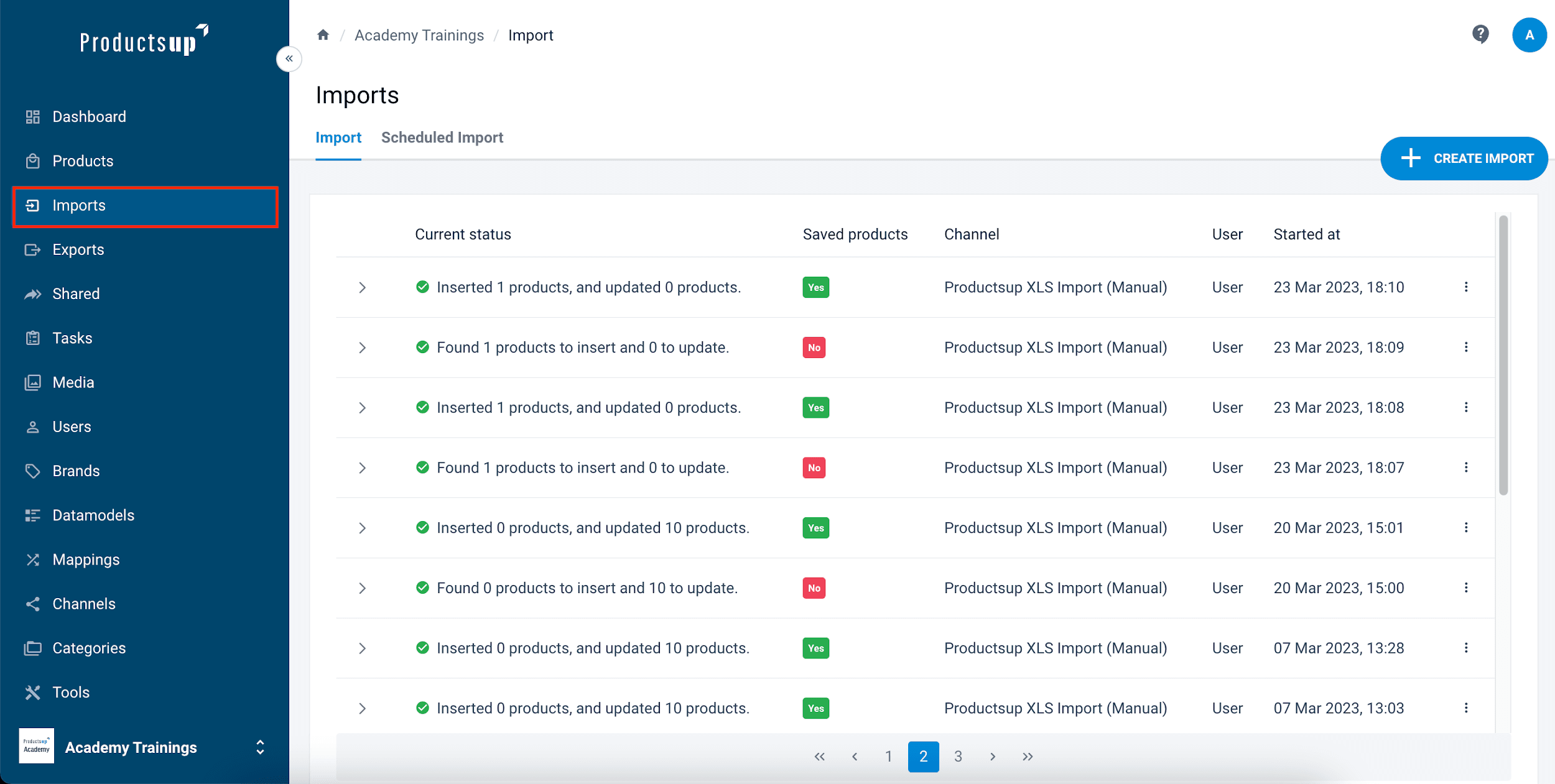
All imports are presented in a table:
| Column / Element | Description |
|---|---|
| Current status | Summarizes the number of products found, inserted, and updated. |
| Saved products | Indicates if products were saved. No typically identifies a test or "dry run." |
| Channel | Displays the specific import channel used. |
| User | Identifies the user who managed the import details. |
| Started at | The exact date and time the import was initiated. |
| Three dots (⋮) | Opens actions: Download import, Restart import, or Delete import. |
Restart import
To restart import, follow these staps:
- Select three dots in the import row.
- Select Restart import.
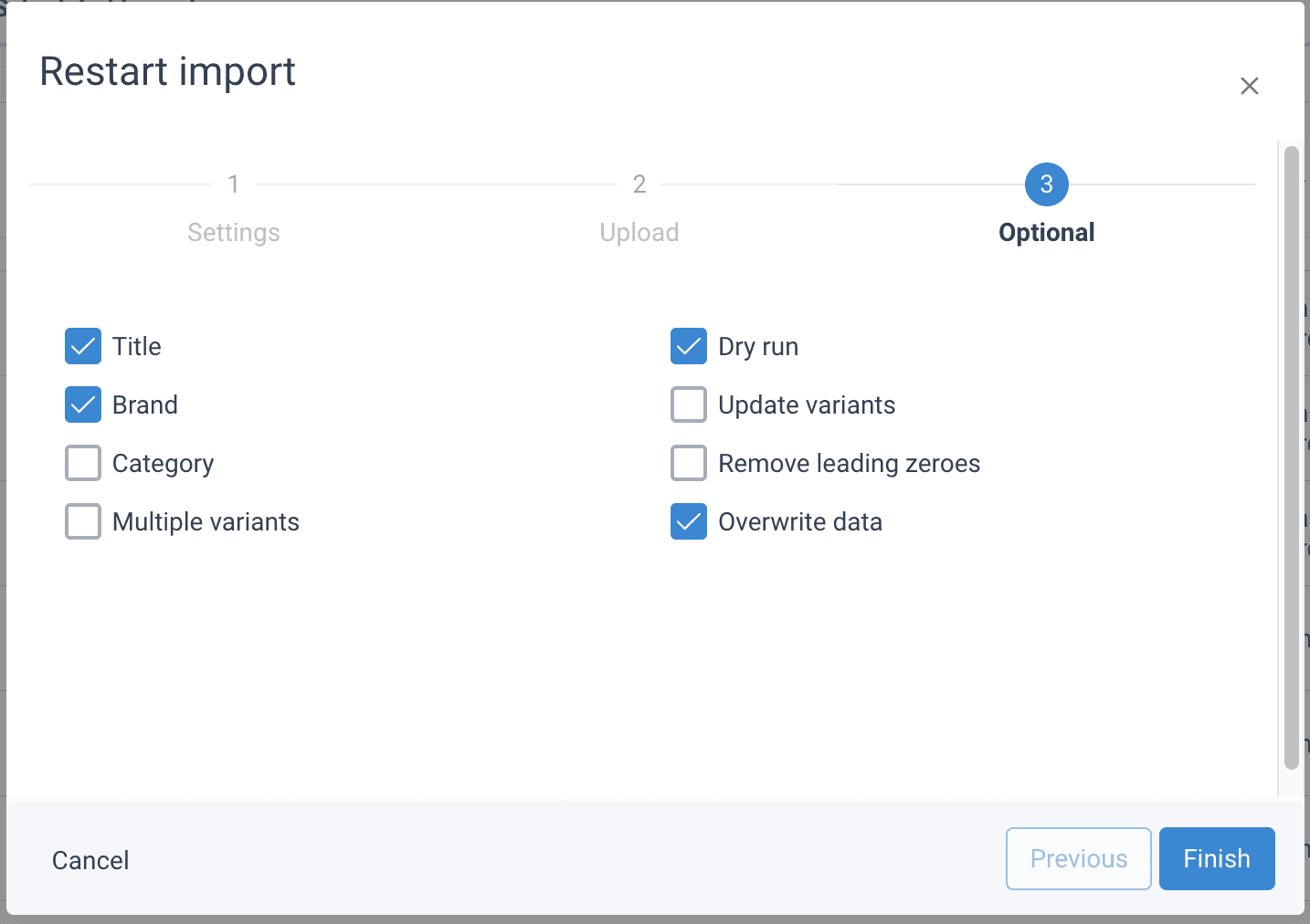
- Select the necessary checkboxes for the data that should be updated:
- Title - the titles of products are updated.
- Brand - the brands of products are updated.
- Category - the categories of products are updated.
- Multiple variants - the master data should be skipped and only variants should be changed. It is possible to change multiple variants by checking this field. When checked, the field ‘Variant column’ comes up, where a column for the variant to be added to your import data should be filled out.
- Dry run - activates a test run. This means products will not be imported into the system. A test run can be used to check your products and data for faults. If any faults are detected, these can be solved so the import will run properly.
- Update variants - the variants of products based on your master data are also updated when an import is run.
- Remove leading zeros - removes zeros (0) at the beginning of EAN to fit a certain length. Note: A zero at the beginning of an EAN code could be an actual part of the EAN. Check manually if your starting zeroes should be removed.
- Select Finish.
Create an import
To create a new import, follow these steps:
- Select the Create import button in the top right corner.
- The New import pop-up ones where you need to add or select the necessary information:
- In Settings, fill out the following:
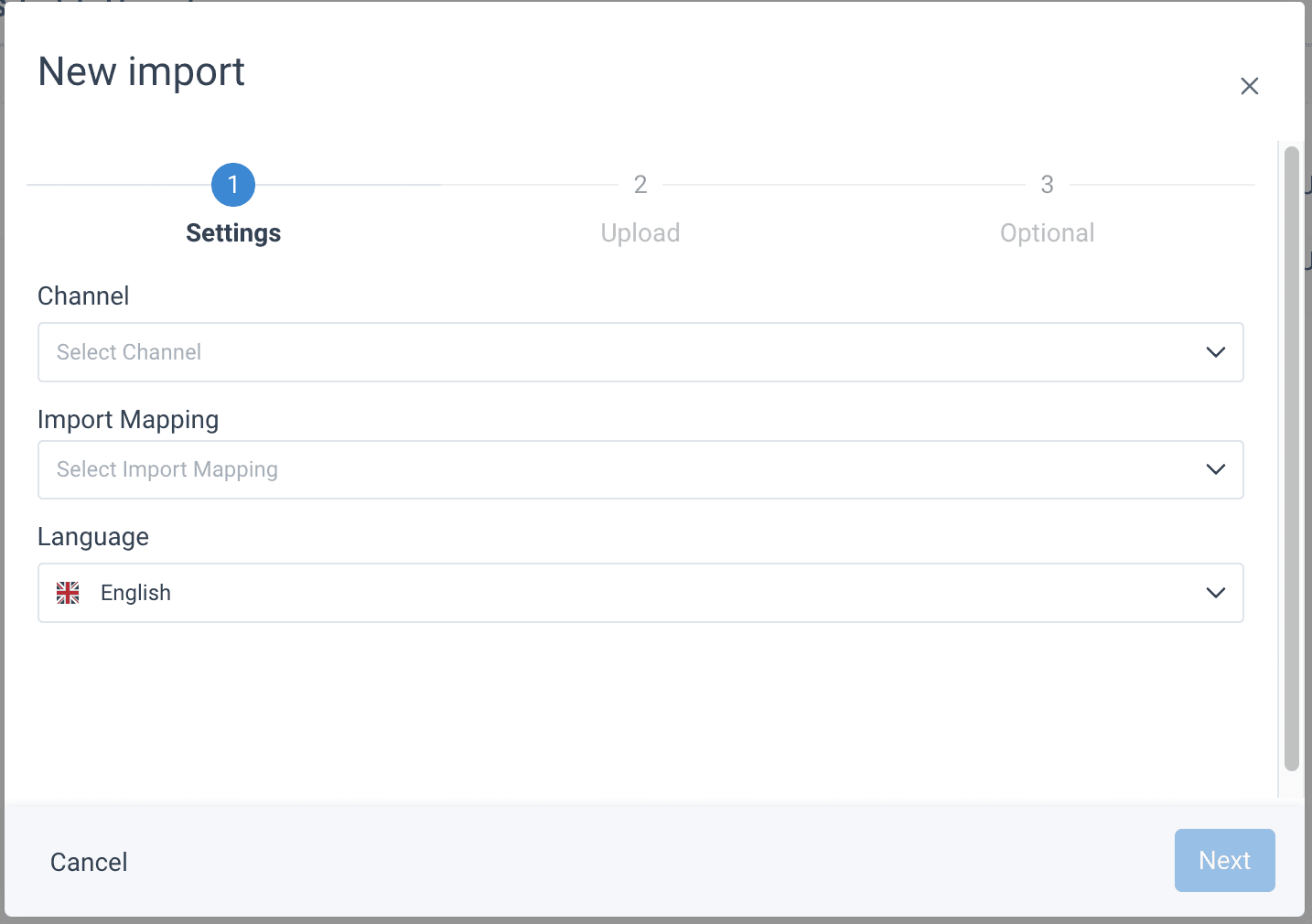
- In Channel, choose the communication channel for this import. If the channel of this restarted import should be different from the original import, you should change it by selecting a different channel in this dropdown field.
- In Import Mapping, select mapping for the import from the list.
- In Language, you can choose the language that your import will be provided in from the search bar which comes up when the field is clicked. This will be automatically filled if a standard language has been set before.
- In Upload do the following:
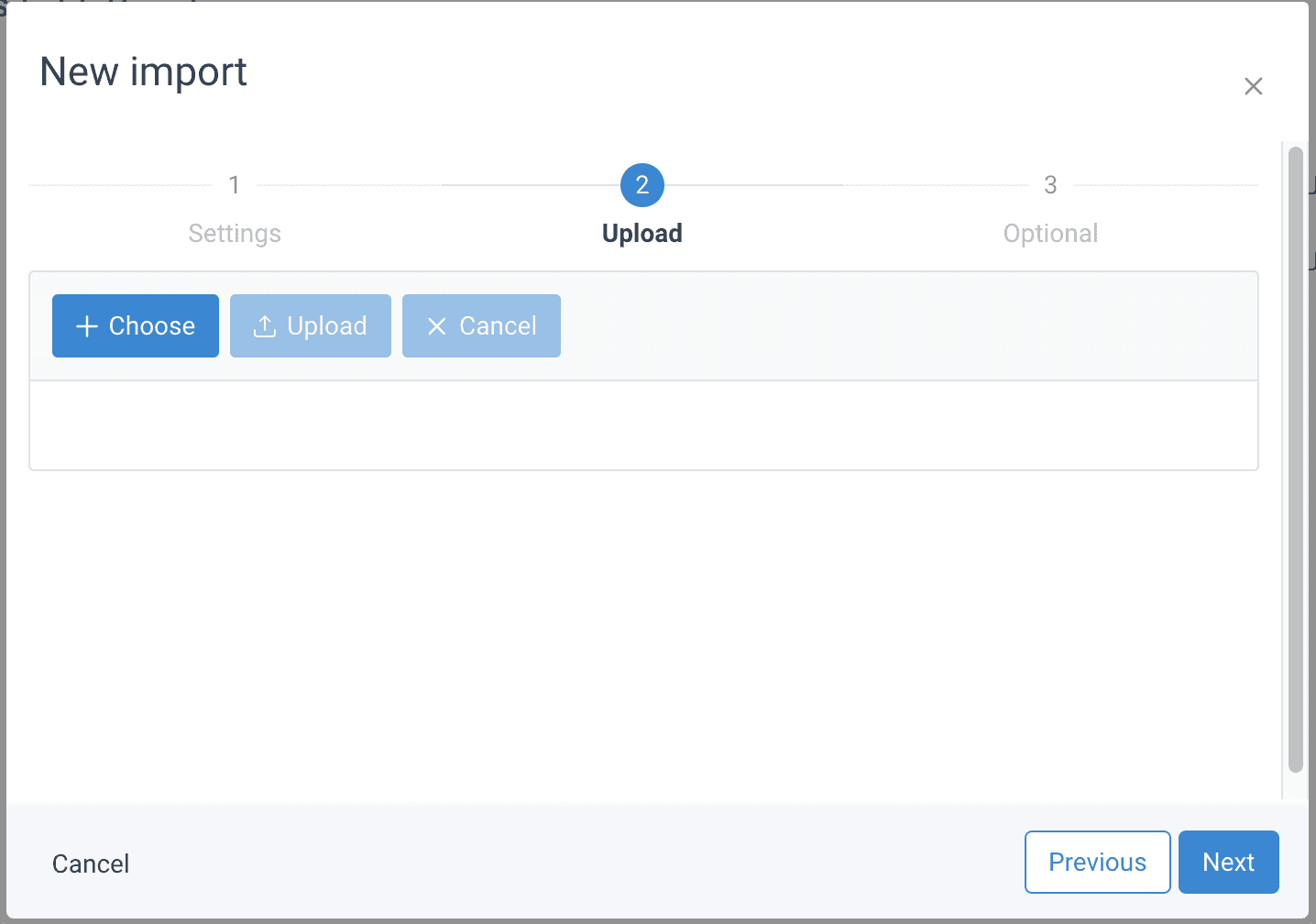
- Select Choose and select the necessary file from your computer.
- Select Upload to upload the file.
- Select Next.
- In Optional, select the necessary checkboxes:
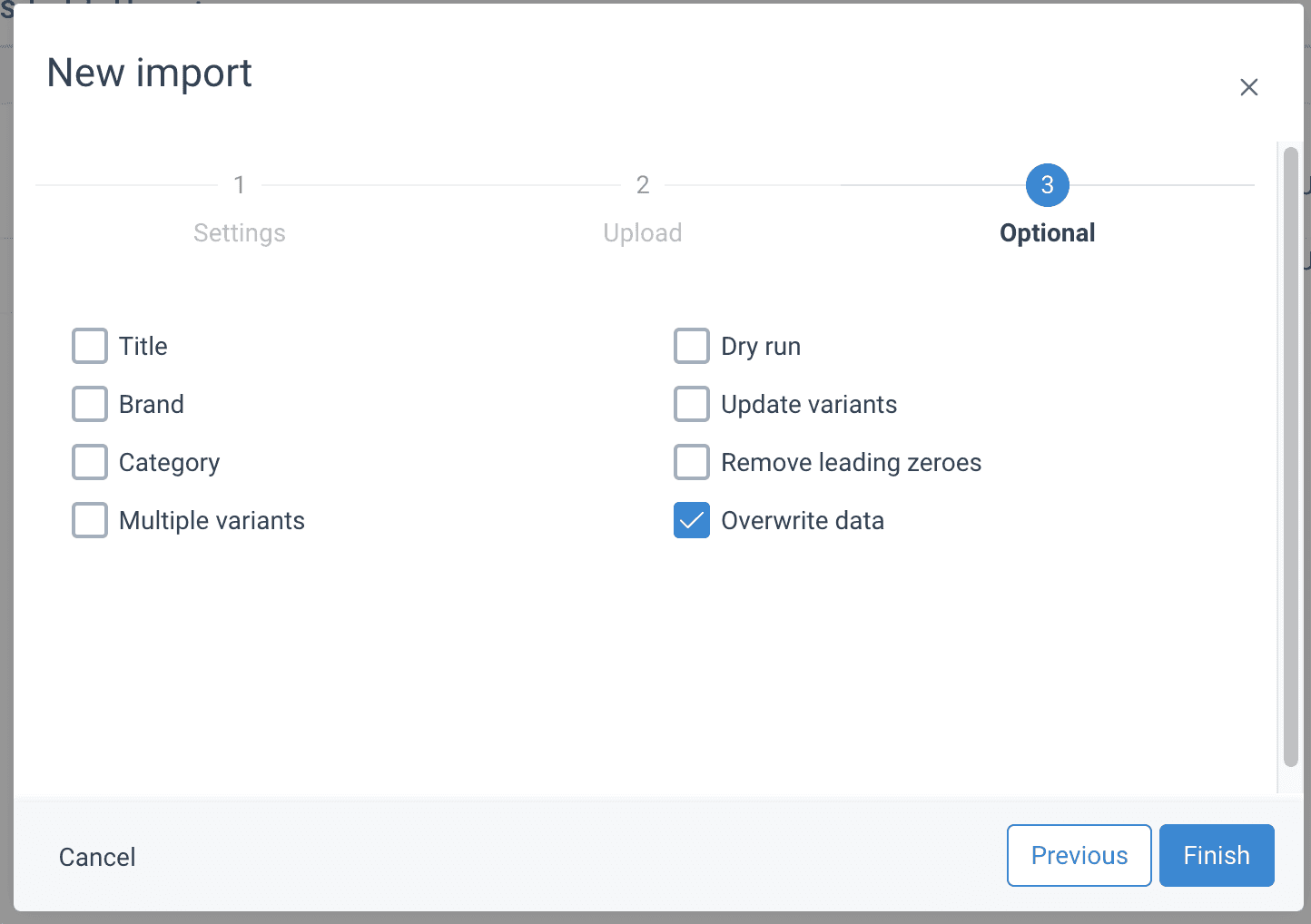
- Title - the titles of products are updated.
- Brand - the brands of products are updated.
- Category - the categories of products are updated.
- Multiple variants - the master data should be skipped and only variants should be changed. It is possible to change multiple variants by checking this field. When checked, the field ‘Variant column’ comes up, where a column for the variant to be added to your import data should be filled out.
- Dry run - activates a test run. This means products will not be imported into the system. A test run can be used to check your products and data for faults. If any faults are detected, these can be solved so the import will run properly.
- Update variants - the variants of products based on your master data are also updated when an import is run.
- Remove leading zeros - removes zeros (0) at the beginning of EAN to fit a certain length. Note: A zero at the beginning of an EAN code could be an actual part of the EAN. Check manually if your starting zeroes should be removed.
- Overwrite data - is checked by default.
- Select Finish.
- In Settings, fill out the following:
View import details
Expand a selected import row to see the import details.
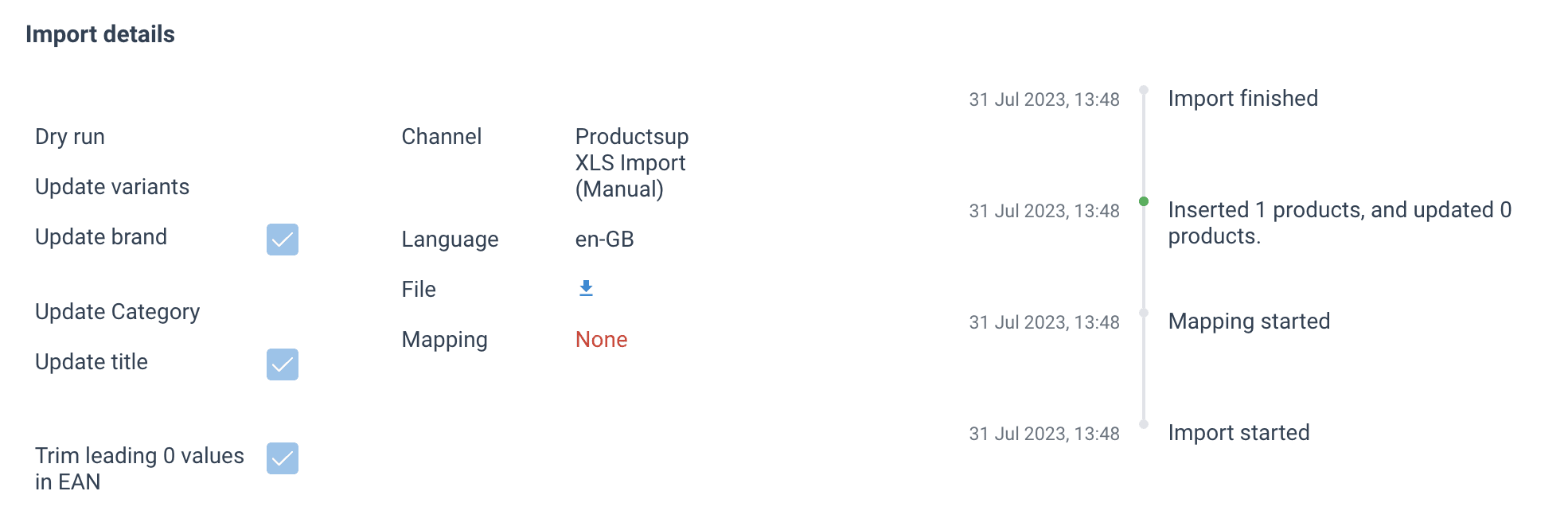
| Property / Option | Purpose |
|---|---|
| Dry run | If checked, the import was a test. Products are processed to check for faults but are not imported into the system. |
| Update variants | If checked, product variants were updated alongside master data. If unchecked, variant data remained unchanged. |
| Update brand | If checked, product brands were updated. This is enabled by default. |
| Update Category | If checked, product categories were updated. This is enabled by default. |
| Update title | If checked, product titles were updated. This is enabled by default. |
| Trim leading 0 values in EAN | If checked, the platform removes leading zeros from EANs. Note: Verify manually if leading zeros are essential parts of your specific EAN codes. |
| Channel | Displays the communication channel selected for the import. |
| Language | Shows the import language. This auto-fills if a default language has been previously configured. |
| File | Select this button to download an Excel overview of the import, including all EAN codes. |
| Mapping | Indicates whether any attribute mapping was applied during the import. |
Next to the information fields is a timeline of the import, showing the dates and times of when the import started, mapping started, products inserted and updated, and when the import was finished. As a standard, the import list is sorted from most to least recent import.
Scheduled imports
The Scheduled imports tab shows you a list of all imports that will happen at a future date and/or time and all the imports that are scheduled to take place at regular intervals.
You can schedule imports for the future, and for imports to be repeated regularly.
- Go to Imports.
- Select the Scheduled imports tab.
- Select the Create Scheduled Import.
- The New scheduled import pop-up ones where you need to add or select the necessary information:
- In Settings fill out the following:
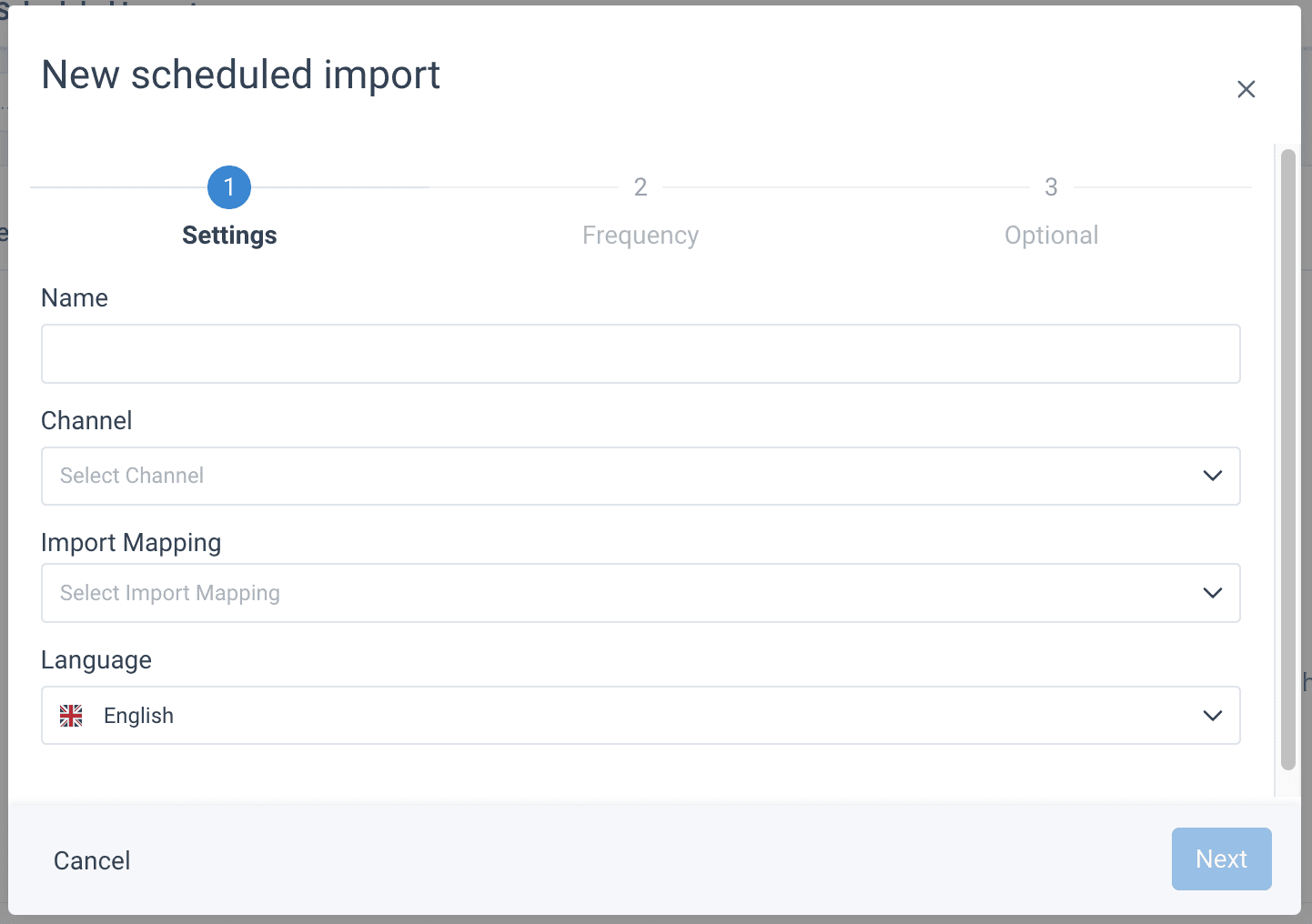
- In Name, give a name to your scheduled import.
- In Channel, choose the communication channel for this import. If the channel of this restarted import should be different from the original import, you should change it by selecting a different channel in this dropdown field.
- In Import Mapping, select mapping for the import from the list.
- In Language, you can choose the language that your import will be provided in from the search bar which comes up when the field is clicked. This will be automatically filled if a standard language has been set before.
- Select Next.
- In Frequency, select how often the import should repeat:
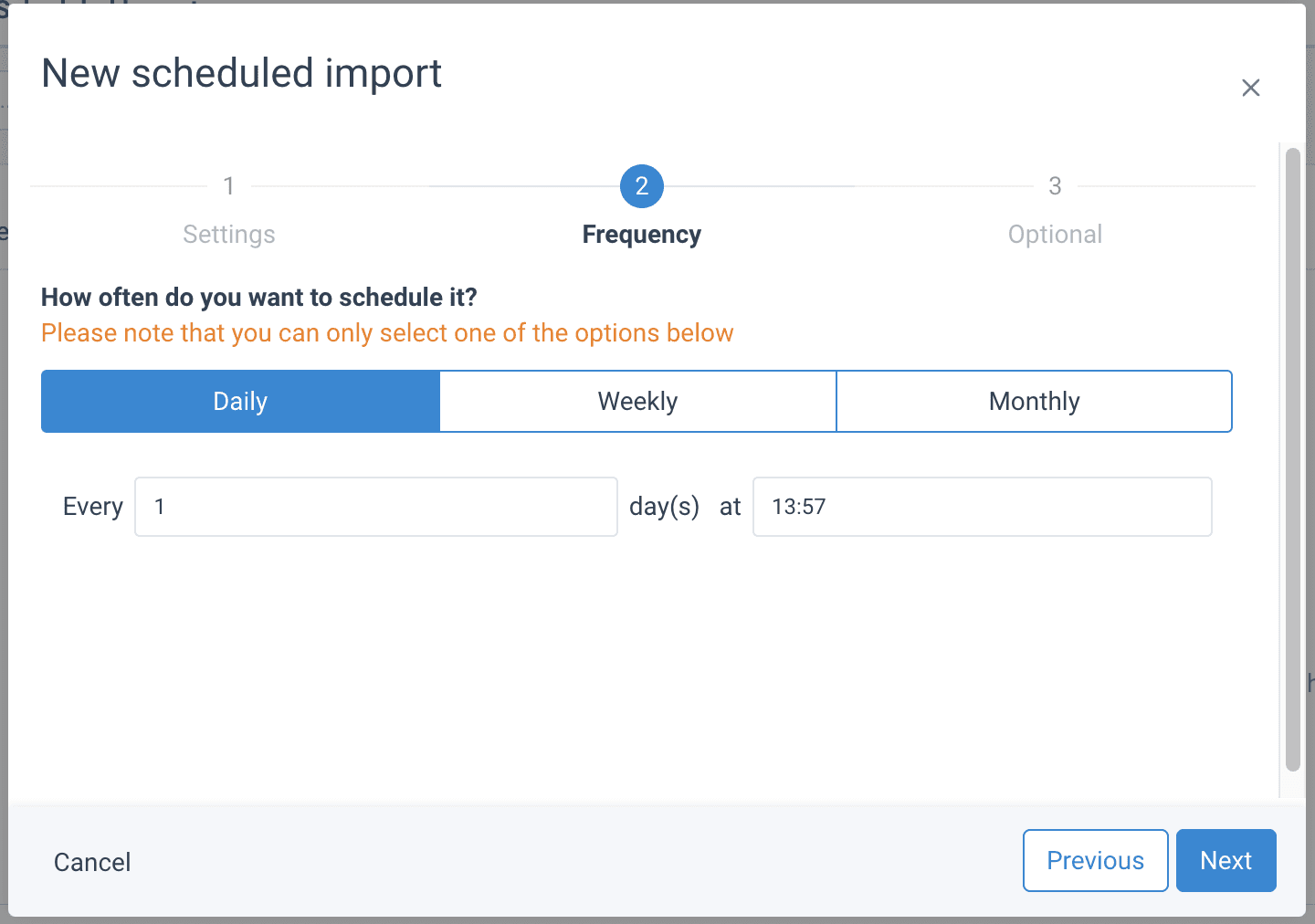
- Daily
- Weekly
- Monthly
- Every X days at HH:MM.
- Select Next.
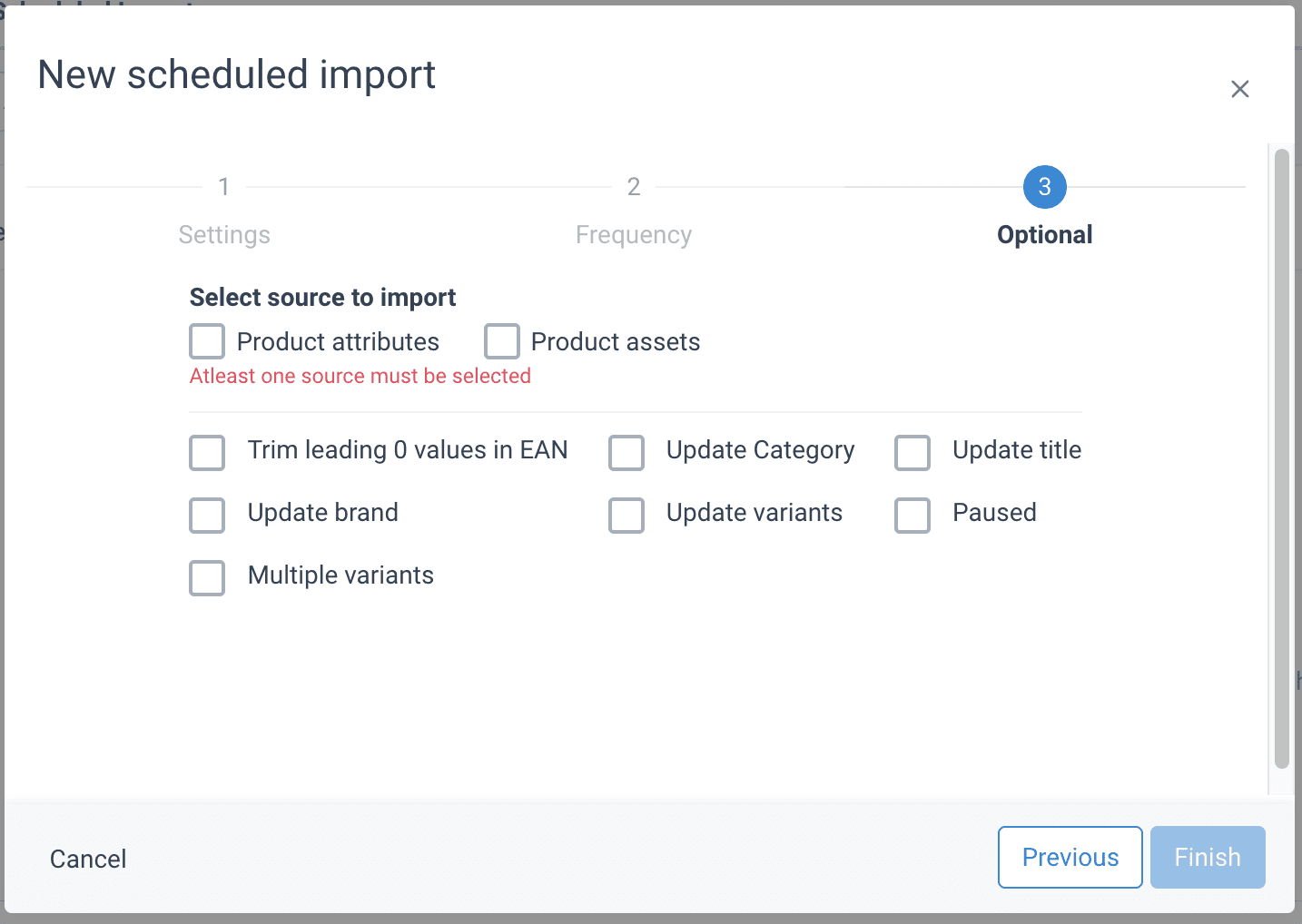
- In Optional, select the necessary checkboxes:
- Select at least one source to import: Product attributes or Product assets.
- Trim leading 0 values in EAN - removes zeros (0) at the beginning of EAN to fit a certain length. Note: A zero at the beginning of an EAN code could be an actual part of the EAN. Check manually if your starting zeroes should be removed.
- Update Brand - sends the updated brands of products.
- Multiple variants - the master data will be skipped and only variants will be changed. It is possible to change multiple variants by checking this field. When checked, the field ‘Variant column’ comes up, where a column for the variant to be added to your import data should be filled out.
- Update Category - sends the updated categories of products.
- Update variants - sends the updated variants of products based on your master data.
- Update title - sends the updated tiles of the products.
- Paused - the imports are stopped until you choose to resume them again.
- Select Finish.
- In Settings fill out the following:
NOTE: Please think twice before deleting a Scheduled import. There will be no more updates in product details and no new product data received by retailers. Consider this risk, or consult with your admin or Retail platform Support team.
How is this guide?