

Exports
An overview of the Exports
Introduction
The Exports functionality lets you get all the necessary information about the exports executed by your organization.
Exports overview
To view all executed exports:
- Go to Exports from the main menu. You can see two tabs:
- Export
- Scheduled export
Export tab
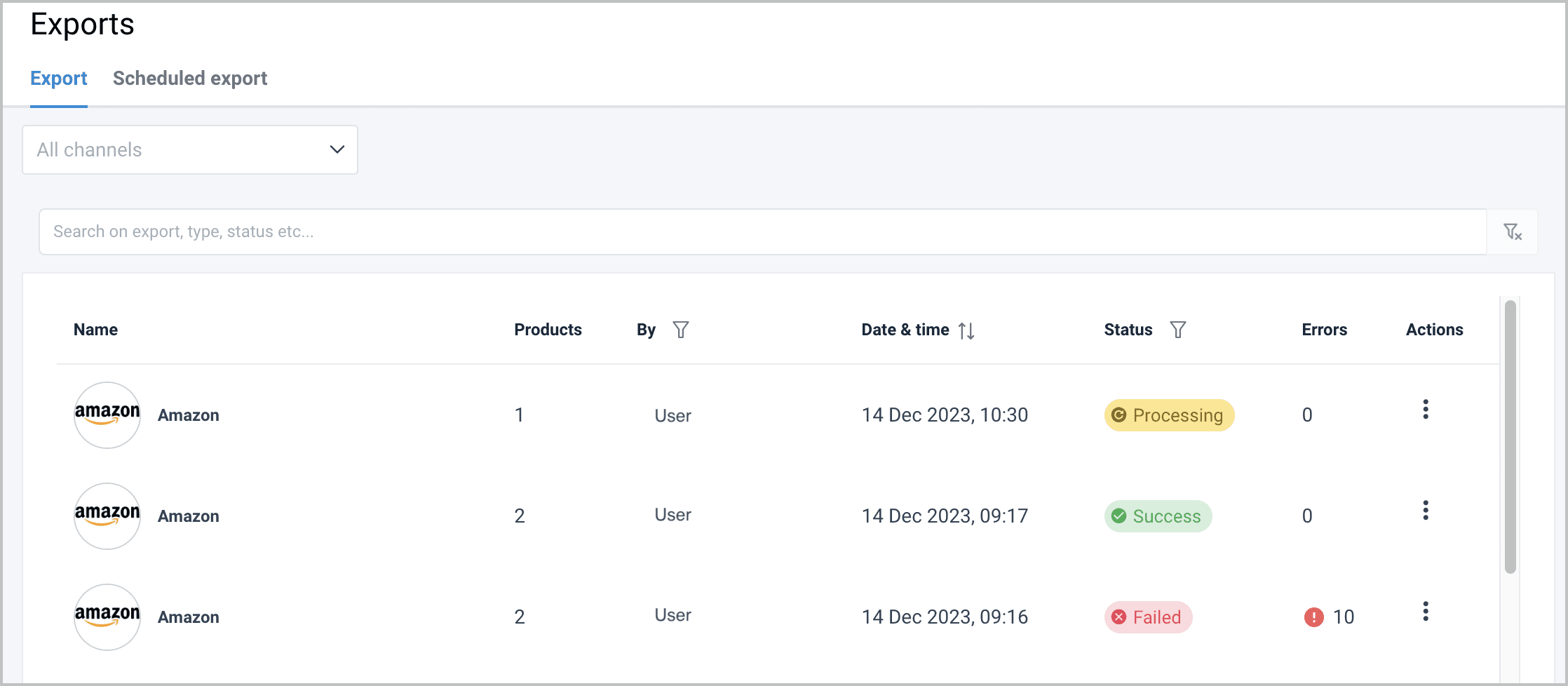
In the Export tab, you can see the list of all executed exports with the following information in the columns:
| Property | Description |
|---|---|
| Name | Displays the logo and name of the specific export. |
| Products | The total number of products included in the export. |
| By | The user who initiated the export; can be used for sorting. |
| Date & Time | The exact timestamp when the export was run. |
| Status | The current state of the export (can be used for sorting): • Pending: Initializing (approx. 1 minute). • Processing: Currently running. • Failed: Check Export log for errors. • Success: All products exported successfully. • Partial success: One or more products exported successfully. |
| Errors | The count of errors encountered (currently exclusive to Amazon exports). |
| Actions | Available operations: • Download export: Save the Excel files locally. • Go to products: Navigate to the Products page. • Restart whole export: Rerun the export after failures or data updates. • Delete export: Remove the export record. |
View the export details and errors
You can select an export row to open the Export details:
| Property | Description |
|---|---|
| Data | The date the export was performed. |
| Status | The current progress or result of the export. |
| Errors | The number of errors encountered (currently exclusive to Amazon exports). |
| Products | The total number of products included in the export. |
| Exported by | The user who initiated the export; can be used for sorting. |
| Channel | The specific export channel used to send the data. |
| Locale | The language setting used for the product display. |
| Mail to | The recipient contact address for the exported data. |
| Data is included | Indicates whether the export file contains data. |
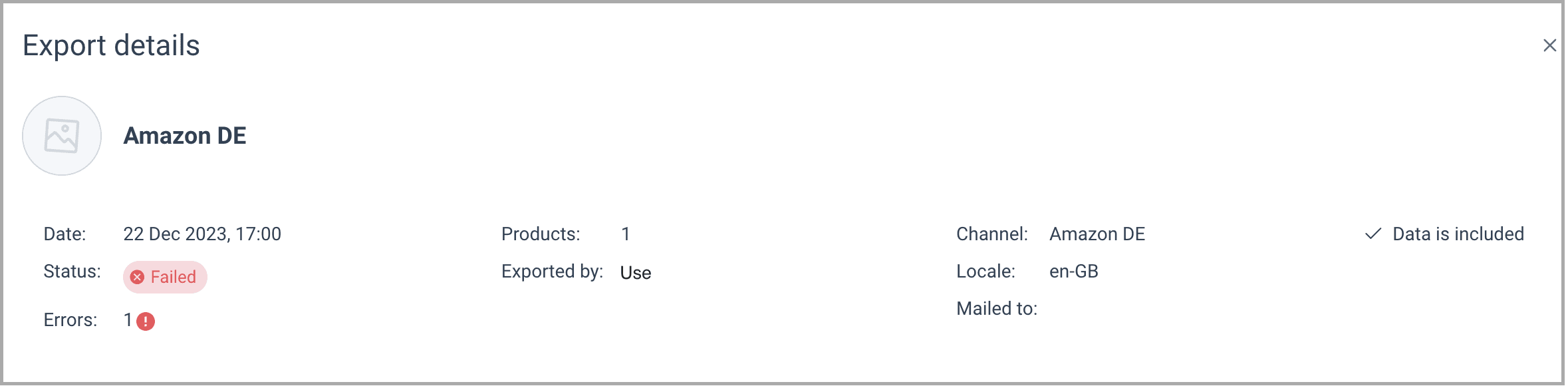
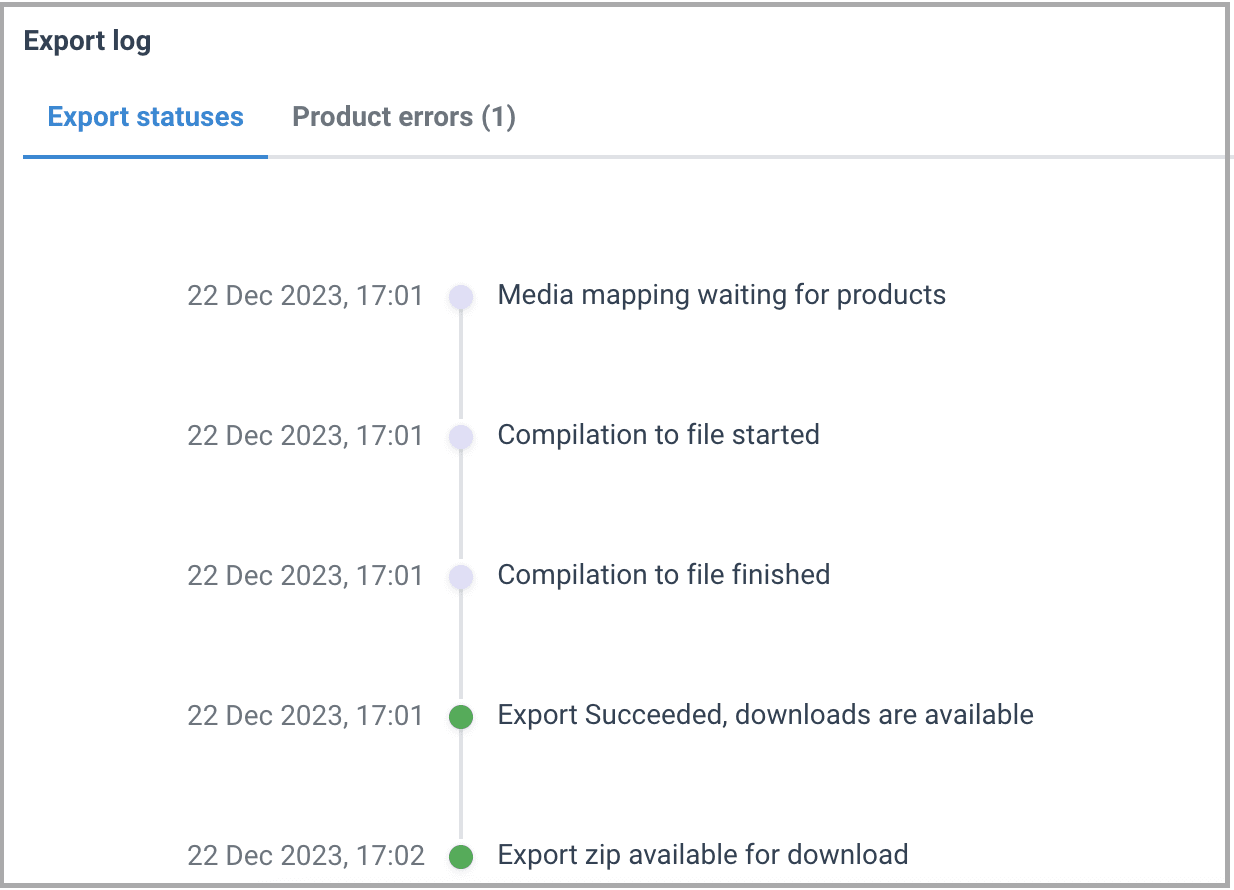
When you select an export row, you can see the export details in two tabs:
- Export statuses - information about global errors occurring within the export pipeline. This tab is available for all exports.
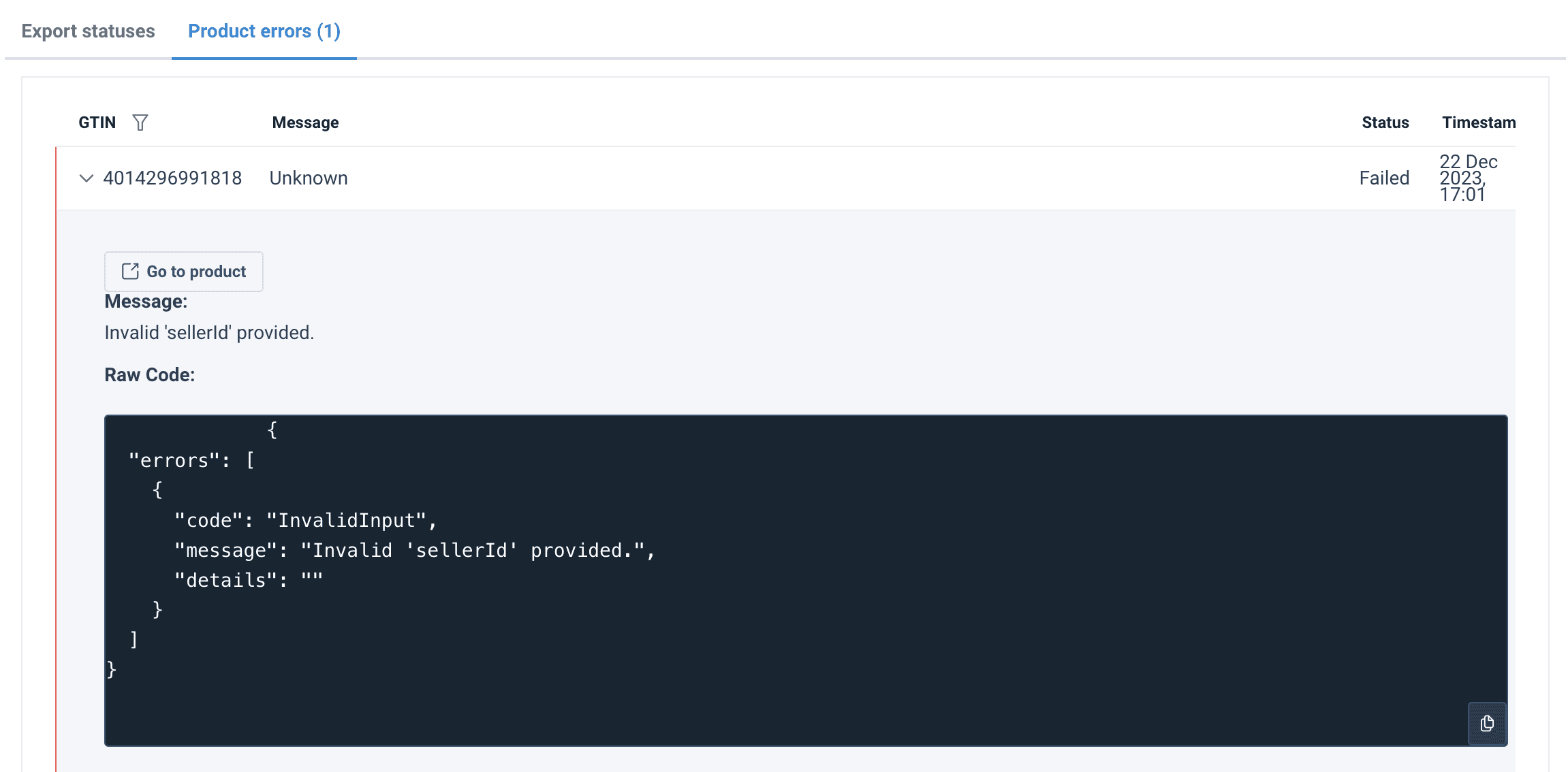
- Product errors - for now, this tab is available only for Amazon exports and lets you view the information about each product such as GTIN, Message containing the Submission ID from Amazon, Status, and Timestamp. You can also see the raw error code in JSON format. In case of an error, you can provide this information to Amazon directly to get help from their support.
Possible errors
The platform distinguishes eight (8) groups of product errors from Amazon:
- Unknown
- Missing attribute
- Value too long
- Value too short
- Connection problem
- Invalid enumerated value
- Invalid checksum
- Invalid pattern
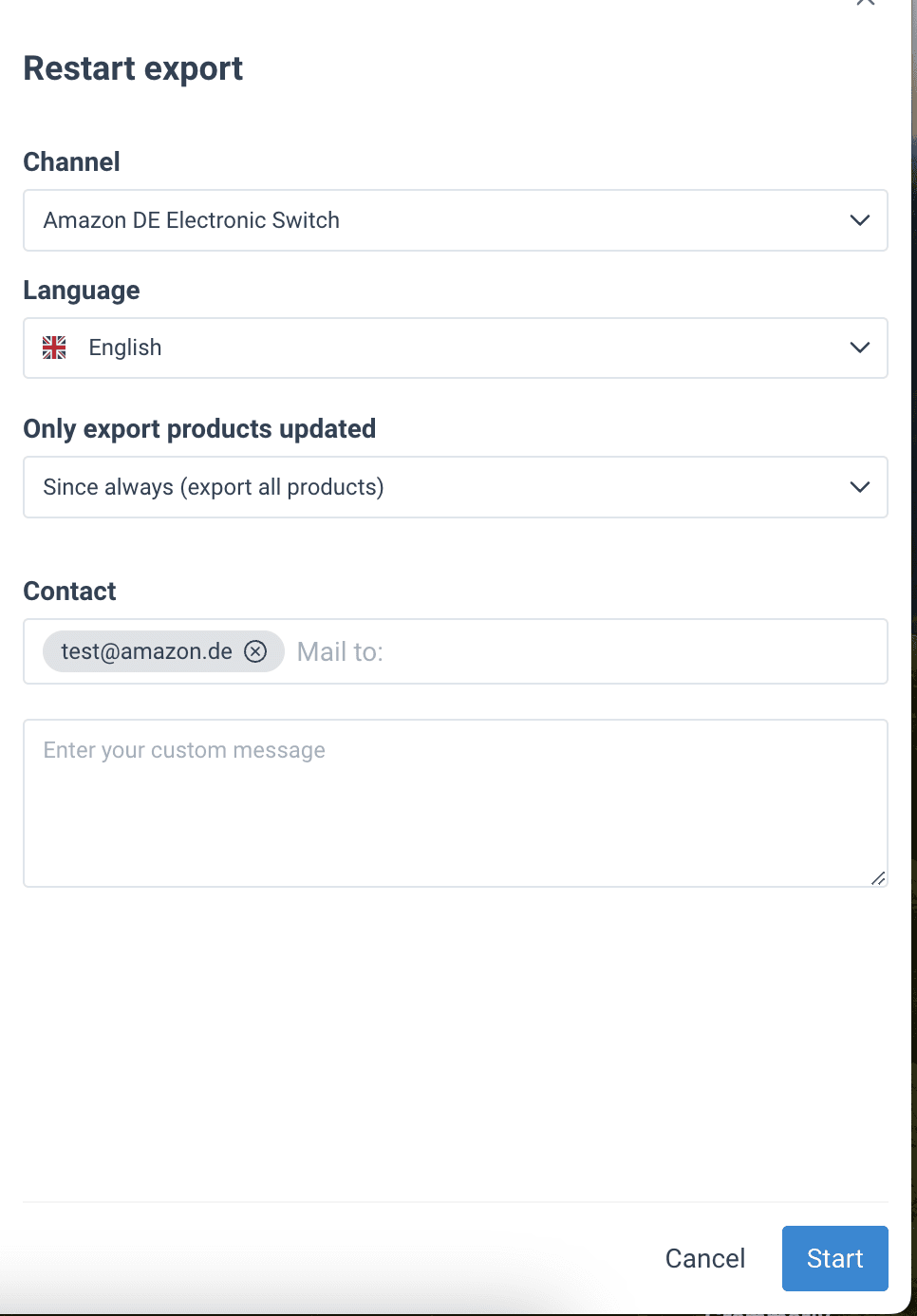
Restart the export
To restart the export:
- Select the three dots next to the desired export and select Restart export.
- In Channel, choose the export. Use its search bar to find the channel.
- In Language, select the language of the export.
- In Only export products updated, select the period that the updates take place.
- In Contact, fill out a mail address and a message to send the export to necessary contacts.
- Select Start.
Scheduled export
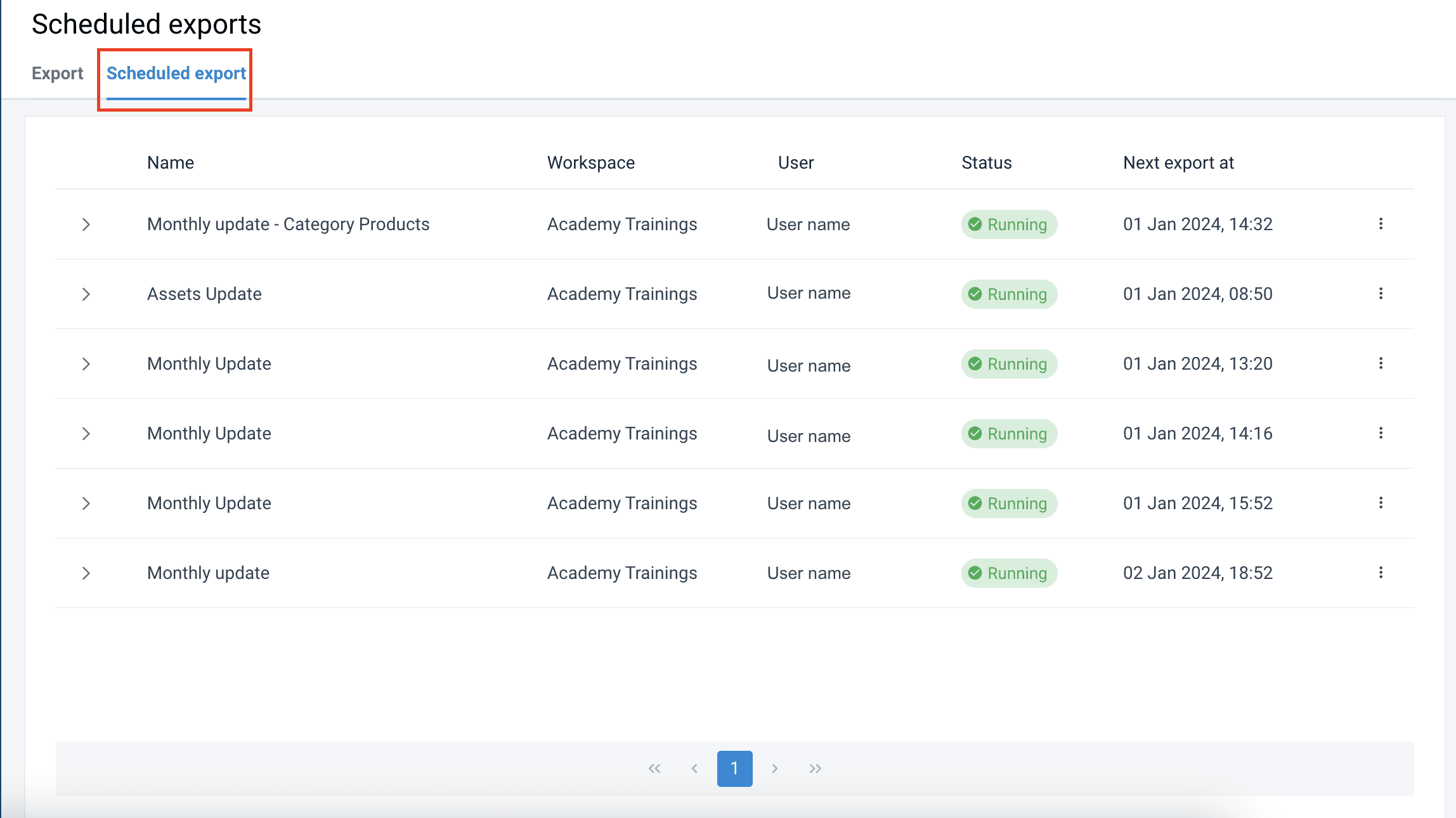
In the Scheduled export tab in Exports, you can see all exports scheduled for the future and exports to be repeated regularly.
TIP: See How To Export Products to learn how to schedule exports.
Every scheduled export shows its status:
- Running - the scheduled exports will take place at the chosen date and time
- Paused - the exports are stopped until you resume it.
If you select the three dots in the last column, you can perform the following actions:
- Restart immediately runs the export.
- Pause stops the export until you unpause it.
- Edit lets you change the schedule details.
- Update products lets you add or remove products sent to the retailer using this export.
- Delete removes the scheduled export.
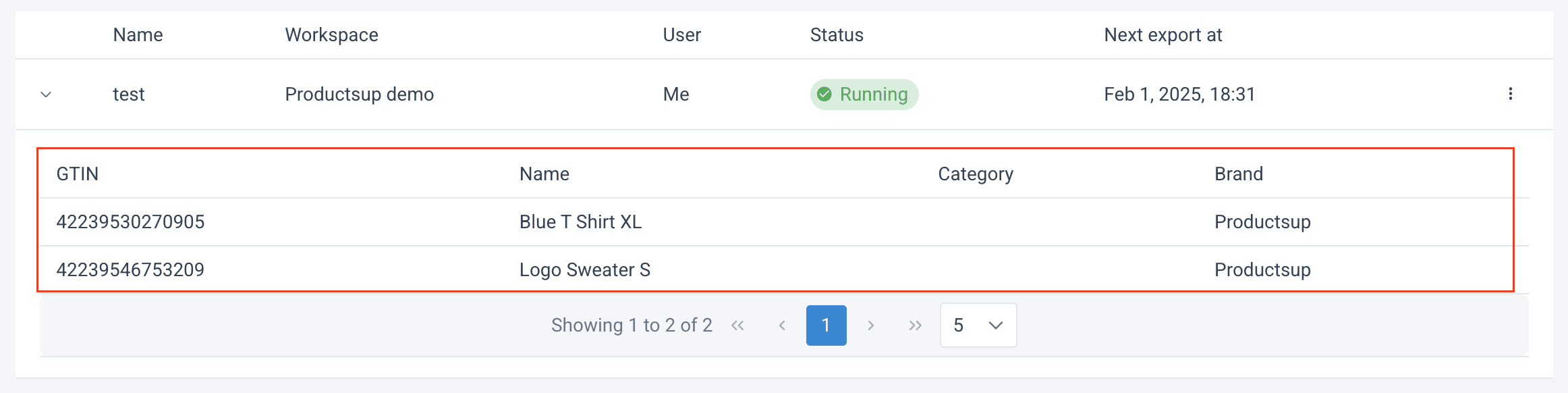
If you select the arrow at the beginning of an export row, you can see the products included in the export.
Edit a Scheduled export
To edit a scheduled export, folow these steps:
- Go to Exports.
- Open the Scheduled export tab.
- Select the three dots next to the needed export.
- Select Edit. The Edit Export sidebar opens.
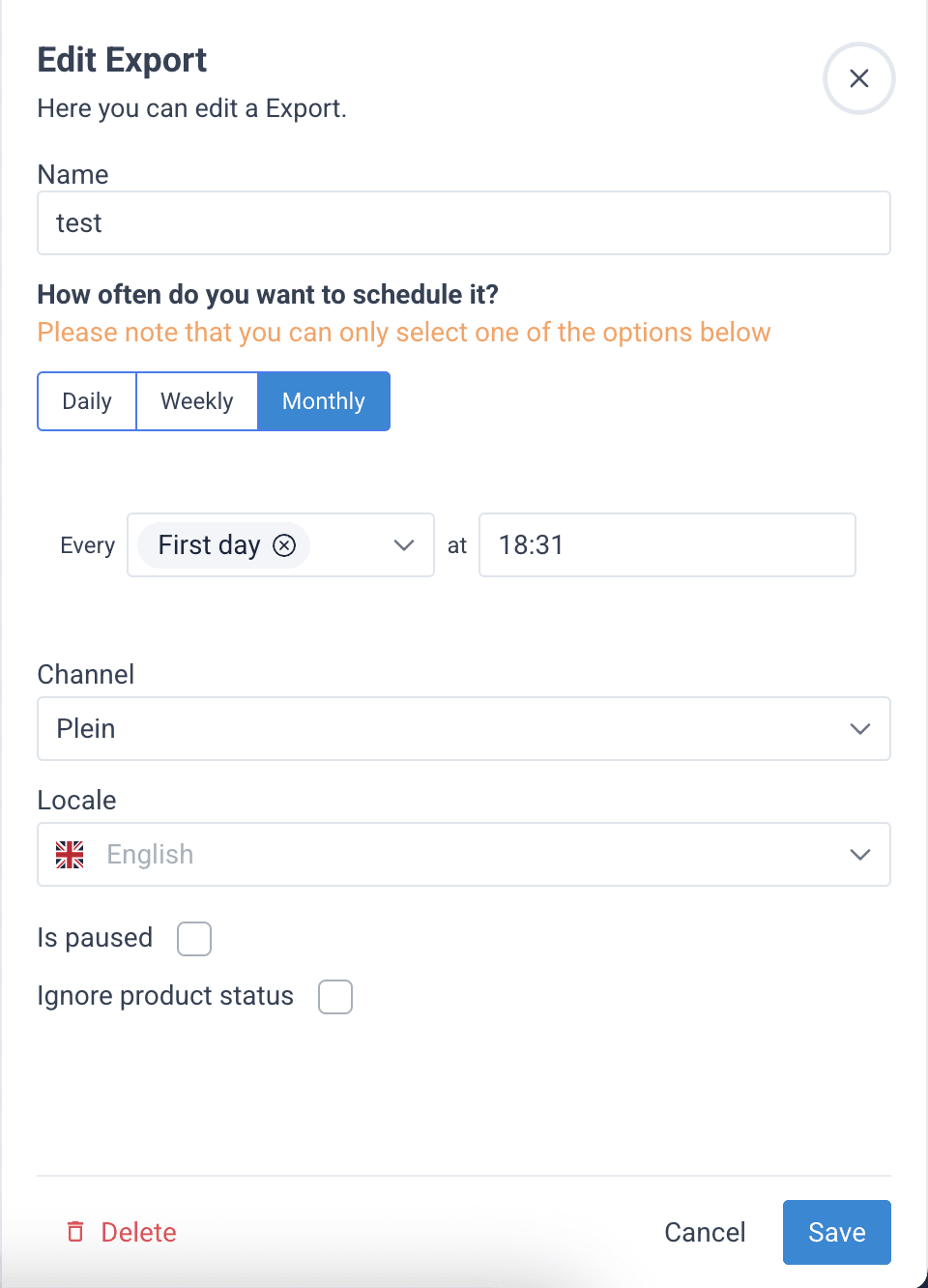
- In Name, edit the scheduled export's name.
- In How often do you want to schedule it?, select the desired timeframe: Daily, Weekly, or Monthly. Then, select the desired days and times when the scheduled export should run.
- In Channel, choose the export channel.
- In Locale, choose the language for your export.
- Check or uncheck the box Is paused to pause or unpause the scheduled export.
- Check or uncheck the box Ignore product status to export products with all statuses.
- Once finished with your edits, select Save.
Change the products added to a Scheduled export
To remove products from a scheduled export or add more products to it:
- Go to Exports.
- Open the Scheduled export tab.
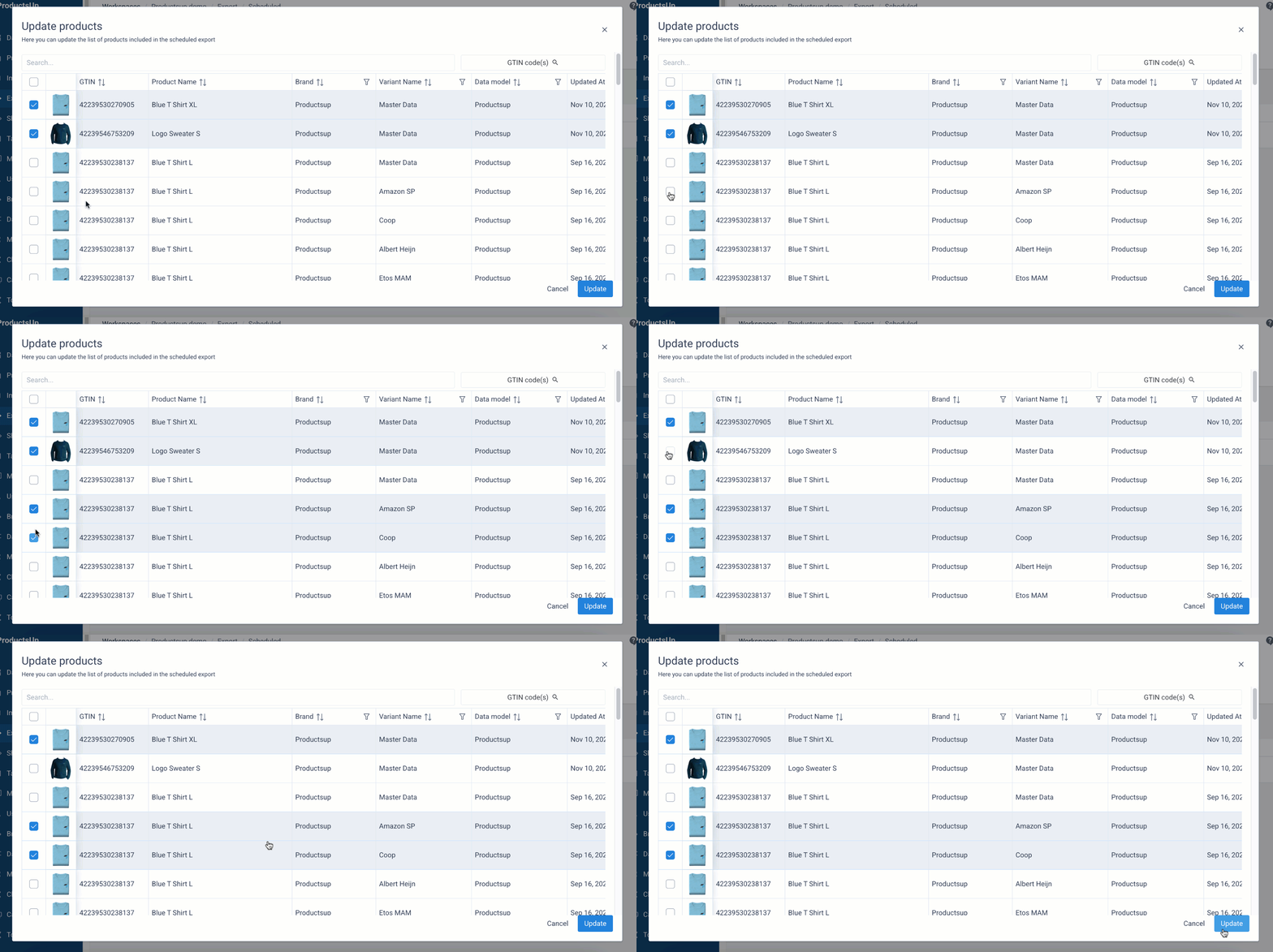
- Select the three dots next to the needed export and choose Update products.
- In the pop-up window, check the boxes next to the products you want to include in the scheduled export and uncheck the boxes next to the products you want to remove. You can use the search bar or sort and filter the columns to find the needed products. When done, select Update.
How is this guide?