

Product details page
An overview of the Product details page
Introduction
In this section, you find the overview of the product details page. To view the details on any product:
- Go to Products from the main sidebar.
- Search for and select the necessary product. The product details page opens.
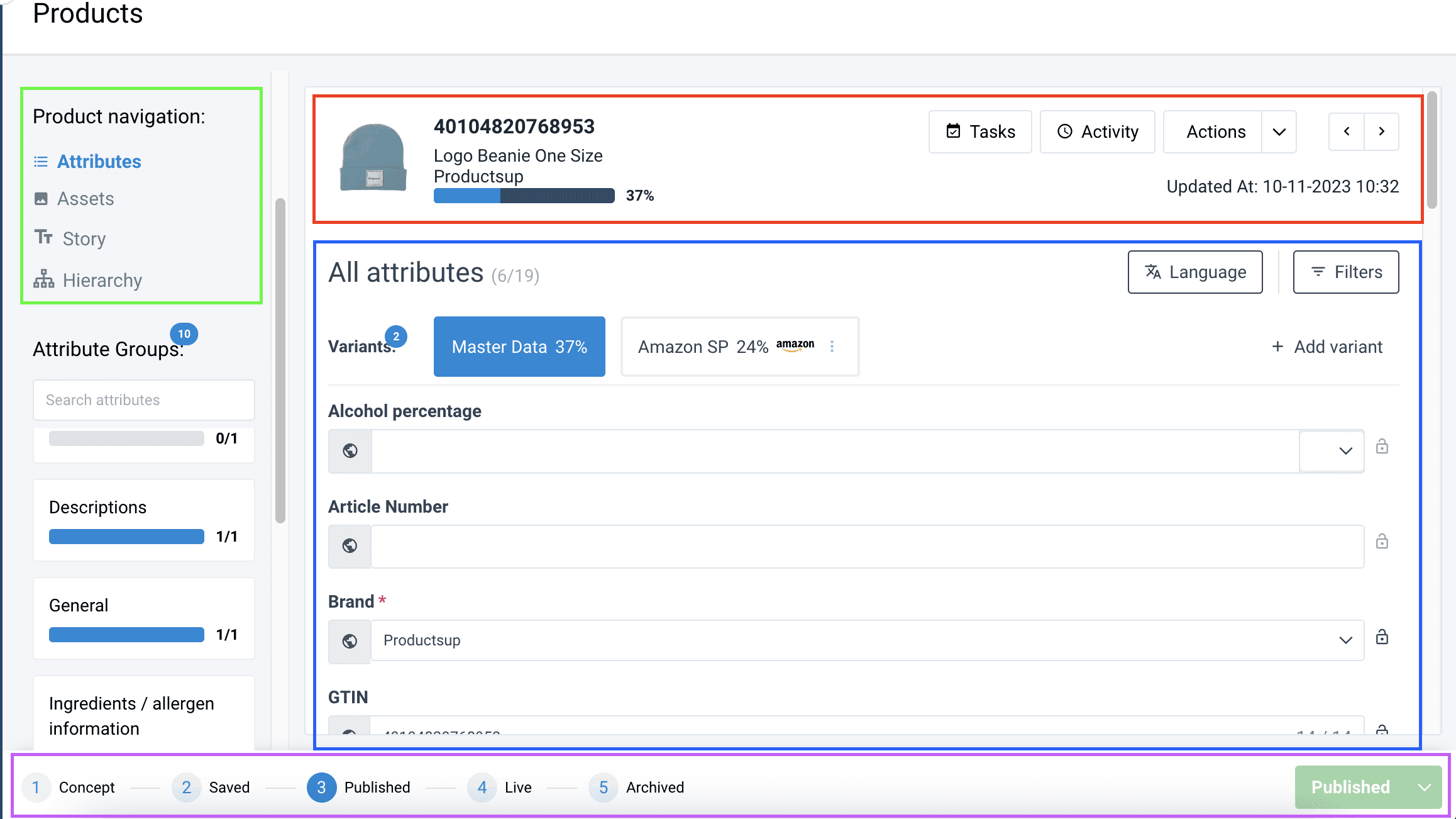
The product details page consists of the following elements:
- Product general information
- Product navigation
- Overview of product sections
- Product stage line
Product general information
At the top of the page, you can see the product's image, GTIN, name, and the percentage of the product information completed depending on the selected variant.
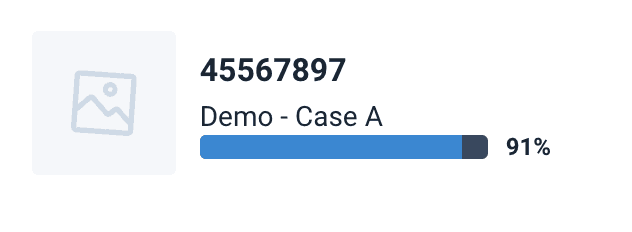
INFO: If the product information completion isn't 100 percent, you still can export the products._
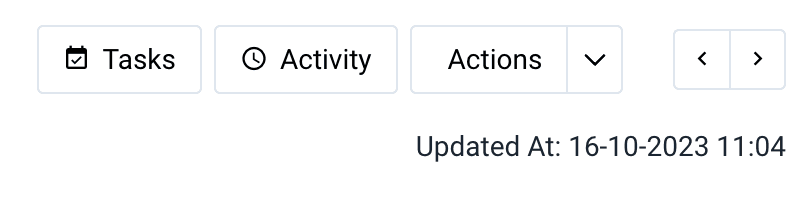
In the general information section, you can also find the buttons related to the product and the data and time of the last update of the product information:
- Tasks - view the tasks related to the product.
- Activity - view the log of all changes to the product.
- Actions - you can edit or delete the product or link it with other products. Deleting the product removes both the product and all its variants.
- Back (<) and forward (>) arrows to move to the next product.
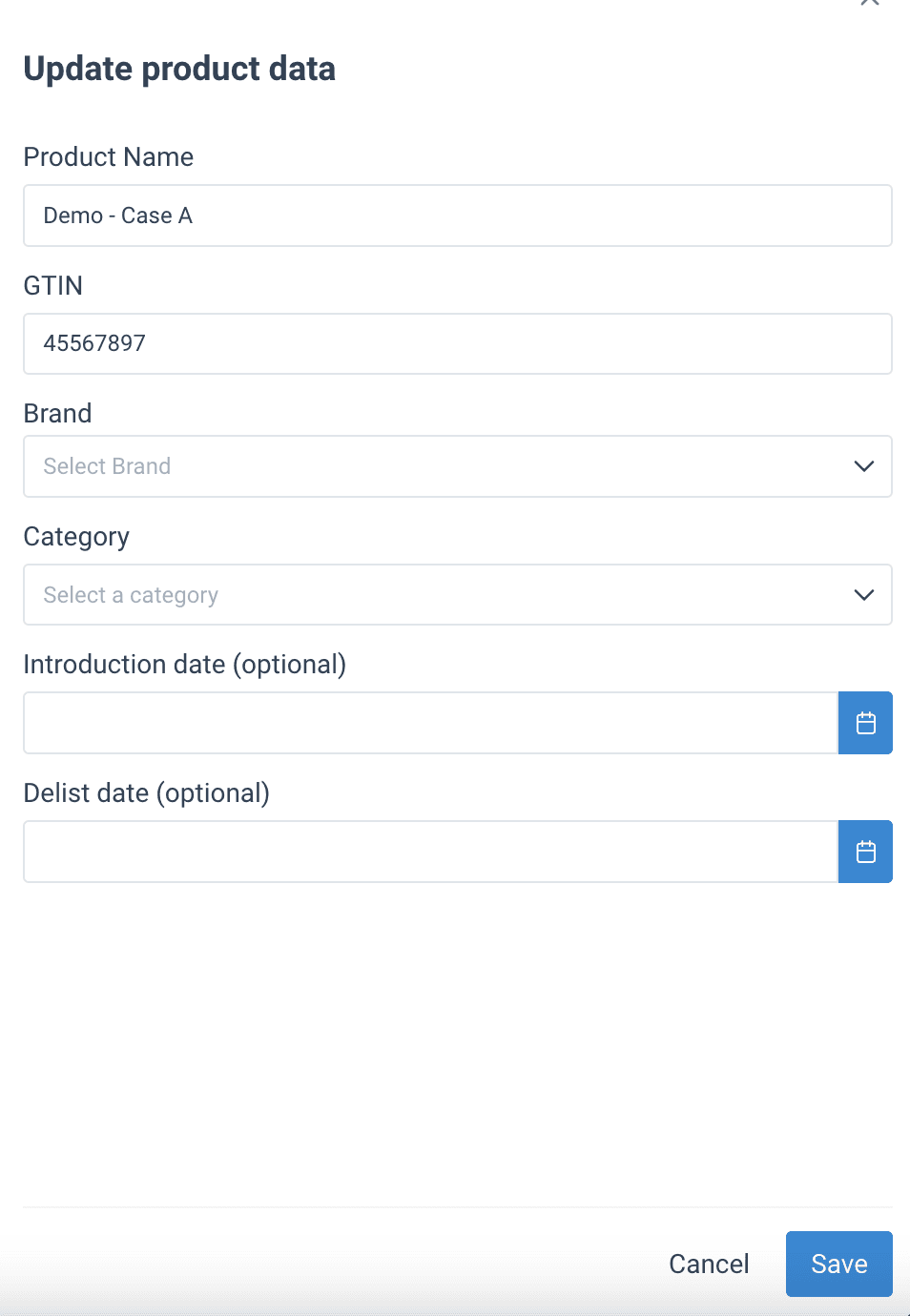
To edit general product information, please follow these steps:
- In the Actions drop-down menu, select Edit. The Update product data sidebar opens.
- In Product, edit the product name.
- In GTIN, edit the product's GTIN. This can be an EAN, an ISBN, or another option depending on the product.
- Select the product's brand in Brand.
- Select the product's category in Category.
- Optionally, open the calendar and in Introduction date select the date and time when the product should be added to the Retail platform and become available for import and export.
- Optionally, open the calendar and in Delist date select the date and time when the product should be removed from the Retail platform.
- Select Save.
Product navigation
On the left side of the product details page, you can find the Product navigation menu consisting of:
- Attributes
- Assets
- Story
- Hierarchy
When you select any of the options, the corresponding view opens under the general product information section.
All attributes
When you select the Attributes option in the Product navigation menu, the All attributes section opens and shows the variants available for the product and attributes for the selected variant.
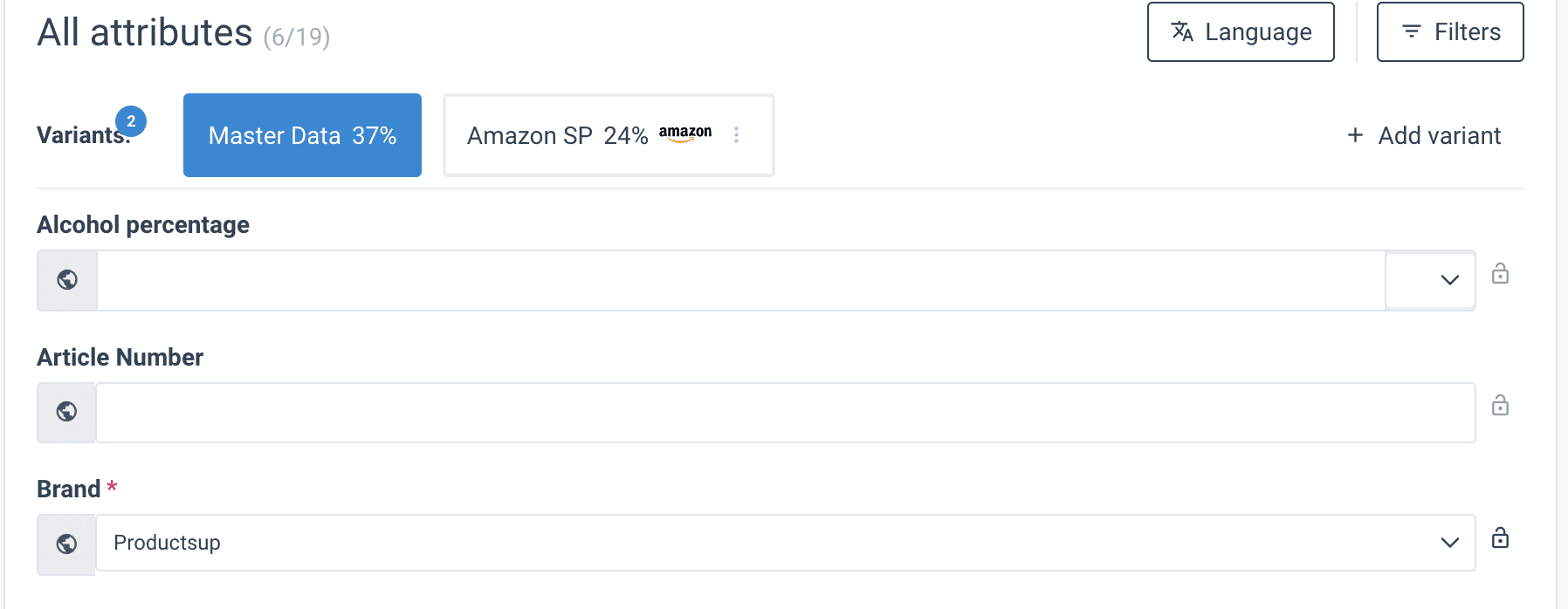
You can search for a needed attribute in the Attribute groups section.
Every attribute may have several fields.
TIP: You can lock the fields by selecting the Lock icon. If the field is locked, it can't be edited.
Variants can be created for specific targets such as various retailers or as Master Data.
NOTE: Each variant's 'Master Data' will contain a specific list of fields necessary for that variant. Different retailers will require different product information and will have different demands for this information and the fields. Therefore, it's not possible to give a complete list of all available fields.
For example, Marketing generic fields can be:
| Attribute | Description |
|---|---|
| EAN | Standardized global identification code for scanning and retrieval. |
| Title | The official product name used by retailers for searches. |
| Subtitle | A secondary description displayed immediately below the title. |
| Brand Marketing | A brief brand overview (Max: 600 characters). |
| Description | Essential product information (Suggested: up to 500 characters). |
| Long description | Comprehensive product details (No character limit). |
| Short description | A concise product summary (Suggested: up to 200 characters). |
| Languages on Pack | Specifies the languages printed on the physical product packaging. |
| Product Marketing | A brief marketing pitch (Suggested: up to 75 characters). |
| Marketing Bullet Point | Individual sentences highlighting product features; can be added multiple times. |
| SEO keywords | Optimized search terms to improve visibility in search engines. |
The Logistics attributes can be:
| Attribute | Description |
|---|---|
| GPC Classification Code | GS1 category code based on product properties and relationships. |
| Packaging type code | GS1 code for packaging type (e.g., CA for carton, BX for box). |
| Height / Width / Depth | Dimensions of the individual product in mm or cm. |
| Net content | The volume of the product (g, kg, mg, l, cl, or ml). |
| Gross / Net weight | The weight of the product (g, kg, mg, l, cl, or ml). |
| Case GTIN | The 8, 12, 13, or 14-digit identifier for the product case. |
| Packaging type code case | GS1 code for the case packaging type (e.g., CA or BX). |
| Case Dimensions | The height, width, and depth of the product case in mm or cm. |
| Case Weights & Counts | Gross weight of the case unit and total quantity of products per case. |
| GTIN Pallet | The 8, 12, 13, or 14-digit identifier for the product pallet. |
| Pallet Dimensions | The height, width, and depth of the pallet in mm or cm. |
| Pallet Gross Weight | The total gross weight of the pallet (g, kg, mg, l, cl, or ml). |
| Platform type code | Standardized pallet code: 11 (EUR, 800x1200mm) or 12 (EUR-block). |
| Pallet Quantities | Total base units per pallet/layer and total case units per pallet/layer. |
| Layers Per Pallet | Total number of horizontal layers on a single pallet. |
| Stock Status & Count | Current inventory level and availability/refill status. |
| Warehouse ID | Unique identifier for the storage facility. |
| Material | The primary material composition of the product. |
Create a new variant
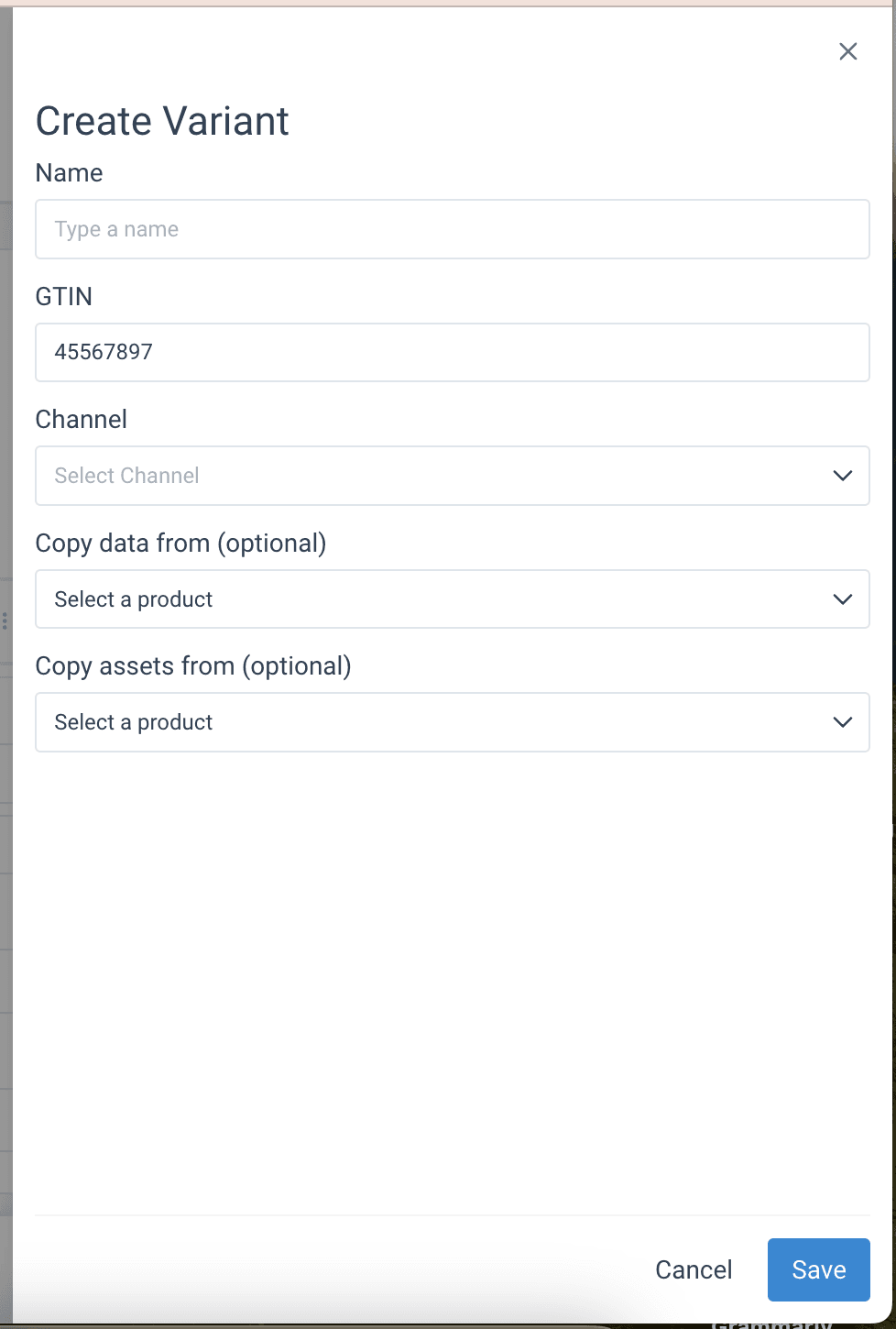
- In Variants, select Add variant. The sidebar Create Variant opens.
- In Name, enter the variant name.
- In GTIN, you can see the GTIN of the selected product. You can edit it.
- Select the needed channel in Channel.
- Optionally, select a product in Copy data from (optional).
- Optionally, select a product in Copy assets from (optional).
- Select Save.
Language management
At the top right side of All attributes, select the Languages button to add the translations for every field in the attributes.
Filters let you leave only the fields in the needed language in the All attributes section. You can also select Only show the empty fields to view only empty fields in the product detail page.

Assets
When you select the Assets option in the Product navigation menu, the Assets section opens and shows all the assets, or image files, uploaded for the products.
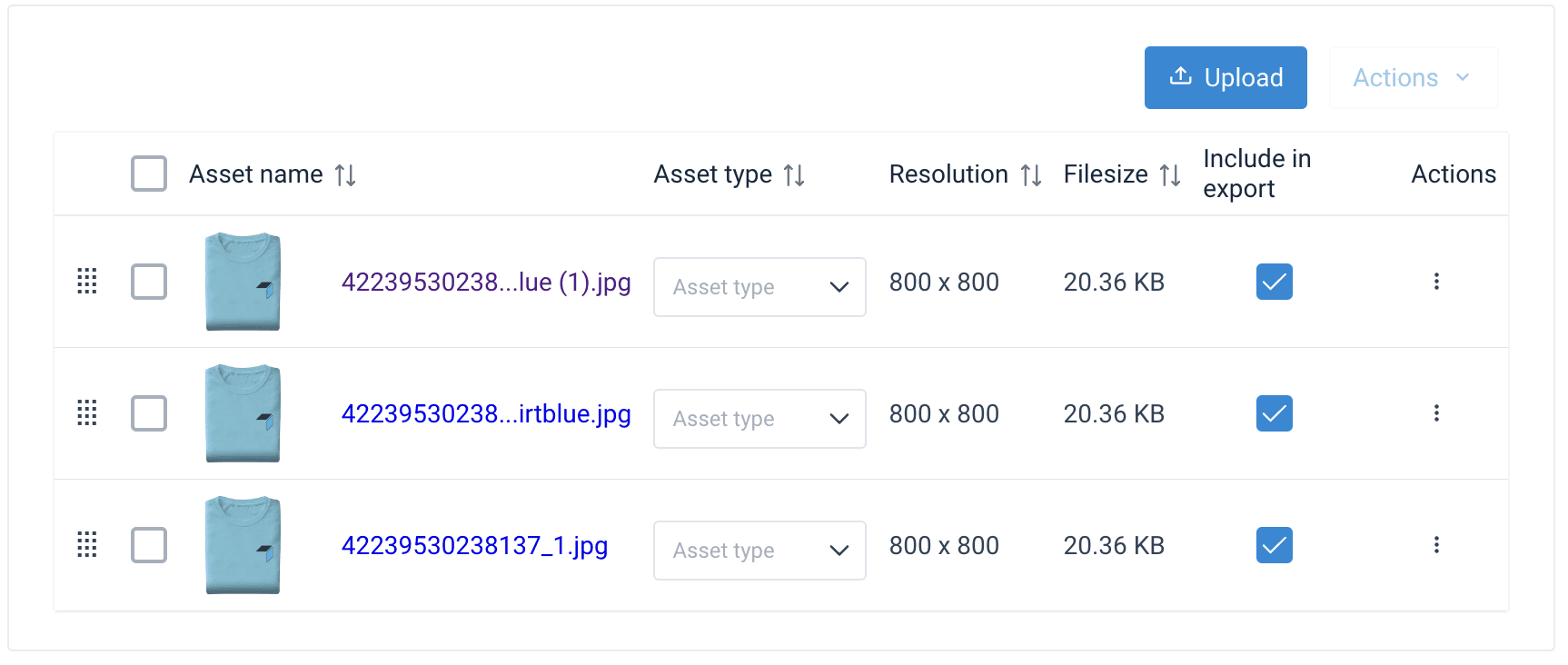
- The column Asset name lets you see the image preview and the asset name which is a link to the full size of the image. Select this link to open the asset in the separate browser tab.
- The column Asset type lets you select the type of your asset such as eCommerce Power Image, Enhanced Content Toolkit, etc.
- The column Resolution shows the resolution of the image in pixels.
- The column Filesize shows the file size of the asset.
- The column Include in export lets you select what assets in the list should be included in exports.
- The column Actions gives you four actions for the selected asset:
- Open asset lets you open the asset in a new tab.
- Download asset lets you download the asset file to your computer.
- Rename asset lets you change the asset name.
- Remove lets you remove the asset file from the platform.
Upload assets
To upload a new asset, follow the steps:
- Select the Upload button.
- Select an image from the Media picker or select Upload to choose an image from your computer.
- Select Choose image.
TIP: To ensure high-quality content we advise uploading images that are at least 300dpi and 2000px long or wide. Most suppliers expect all images to be in the PNG file type.
Hierarchy
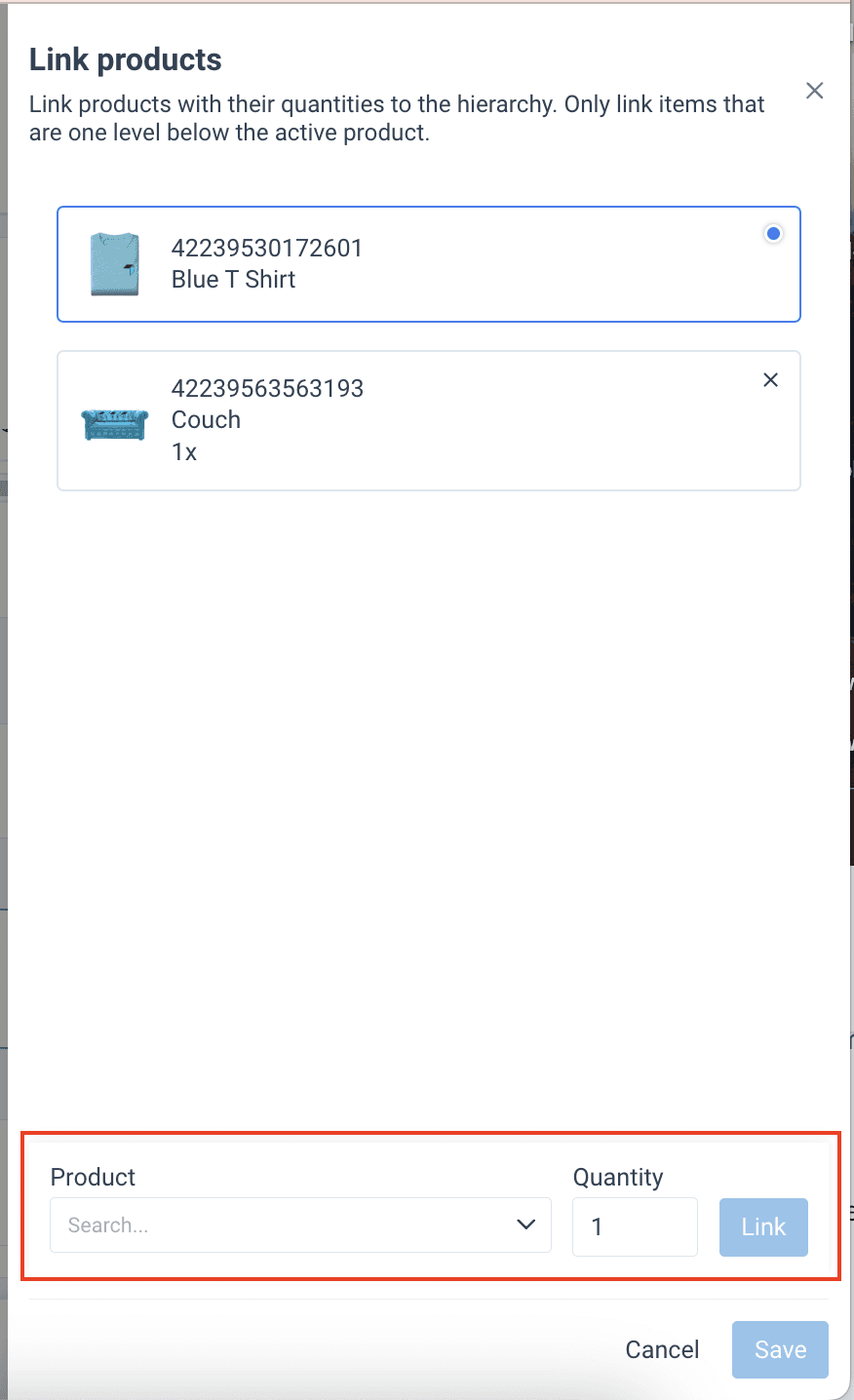
When you select the Hierarchy option in the Product navigation menu, the Hierarchies section opens where you can view the hierarchies of products and link the products with their quantities.
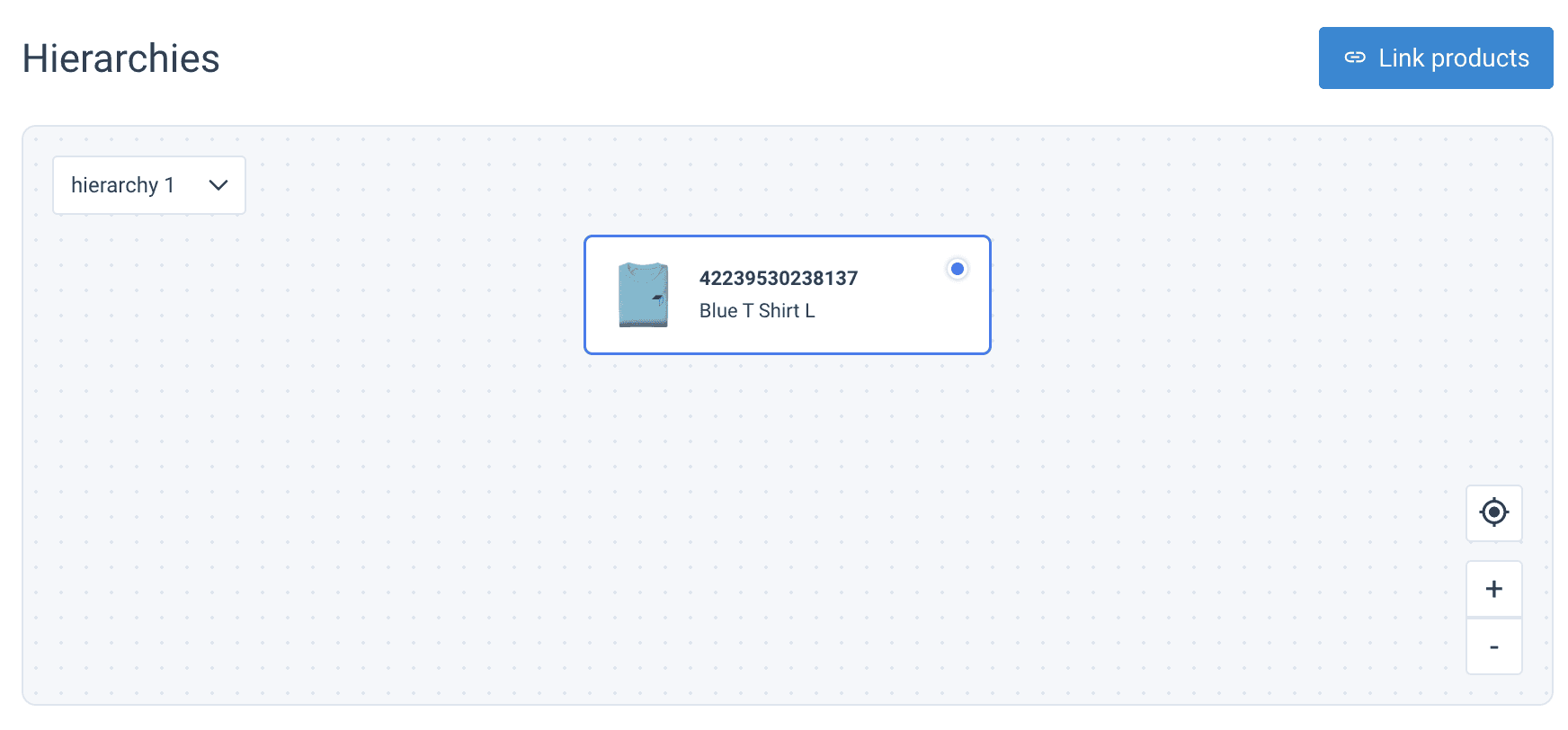
To link the products:
- Select Link products and only link items that are one level below the active product.
- In Product, select a product.
- In Quantity, select the number of products.
- Select Link.
- Select Save.
Upload hierarchy using CSV
You can import packaging hierarchies, or linked products, via a CSV and export them to the needed channels using the Retail PX API. You must link each product to one lower-level product in a hierarchy by providing the GTIN and quantity of the respective lower-level product in its data within a CSV import.
For example, you can import and export linked products in a scenario similar to this:
- In the PALLET unit, you can provide the GTIN and Quantity of the relevant DISPLAY unit.
- In the DISPLAY unit, you can provide the GTINs and Quantities of three CASE units.
- In the CASE units, you can provide the GTIN and Quantity of the respective BASE unit.
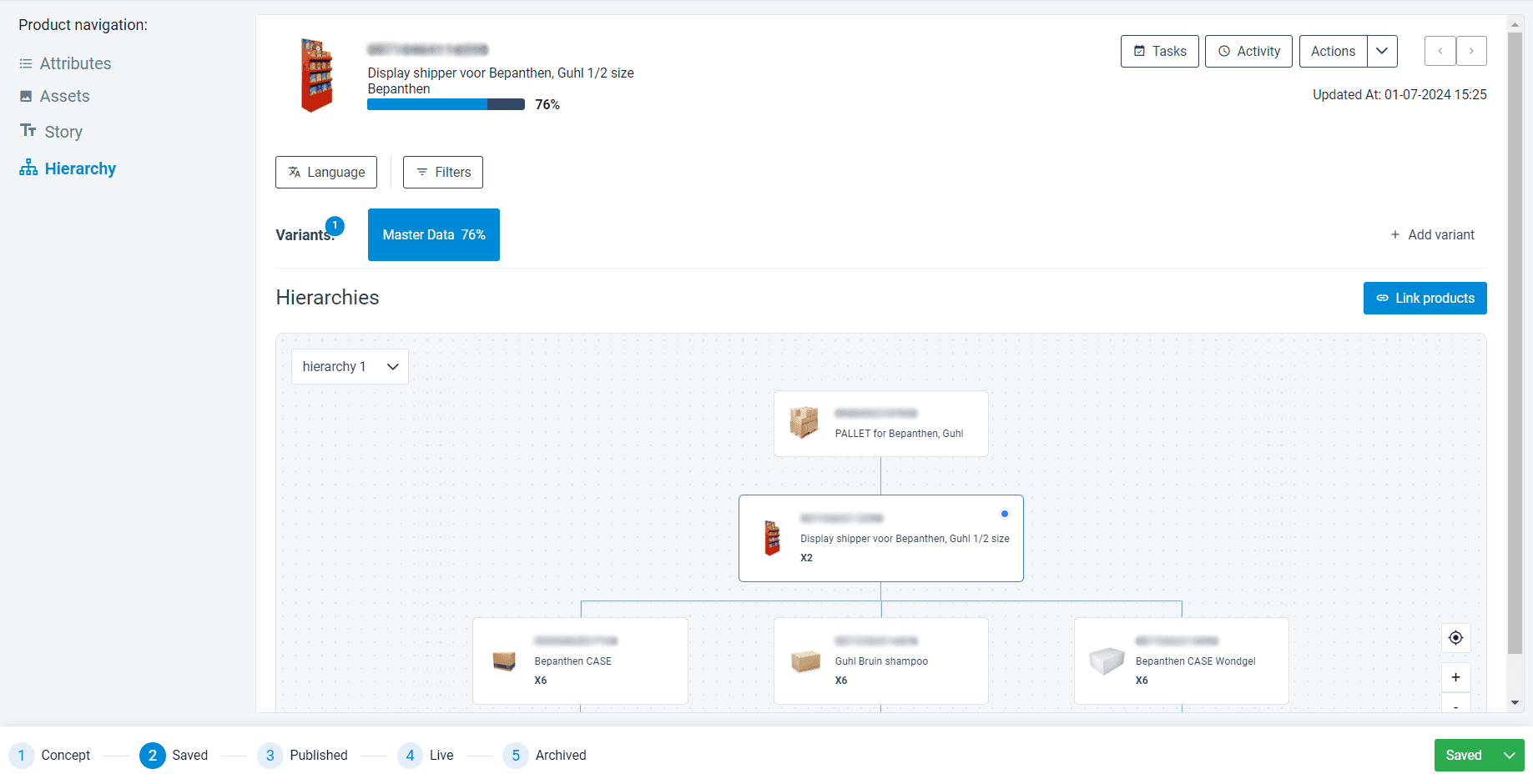
When you import data with the GTINs and quantities of lower-level products, the Retail platform automatically connects all the linked products and displays the respective hierarchy tree on the product detail page.
Product status line
For every product, at the bottom of the product details page, you can see the workflow line and the status of the product.

How is this guide?