

System Settings
An overview of the System Settings
Introduction
In the Retail platform, you can change your overall account preferences using the profile icon in the top-right corner of the page.
To access your Retail account settings:
- Select the profile icon in the top-right corner of the page.
- Select System Settings.
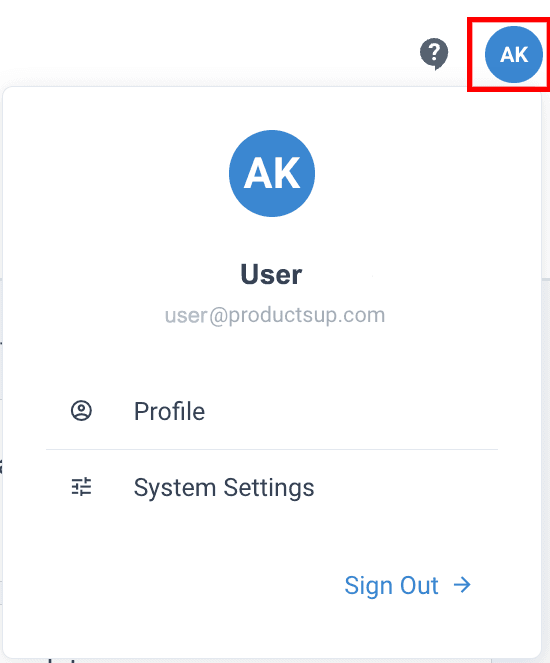
There are six tabs with different account settings:
- Preferences
- Notifications
- Organisation
- Connected workspaces
Preferences tab
In Preferences, you can manage the following settings:
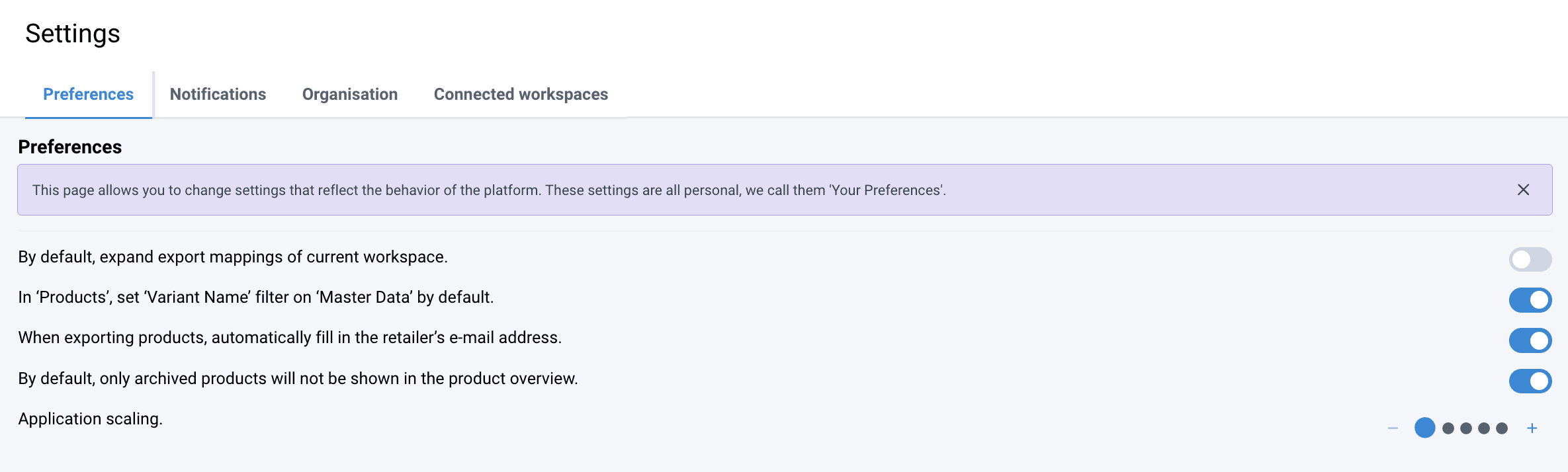
| Option | Purpose |
|---|---|
| Expand export mappings | Automatically expands all mapping fields when opening the Export mappings page. |
| Default 'Master Data' filter | Automatically filters the Variant Name column to show Master Data in the Products overview. |
| Auto-fill retailer email | Automatically populates the retailer's email address during export using data from Contacts. |
| Hide archived products | Hides Archived products from the overview by default. They remain accessible via the Status filter. |
| Application scaling | Adjusts the interface font size using the + and - buttons. |
Notifications tab
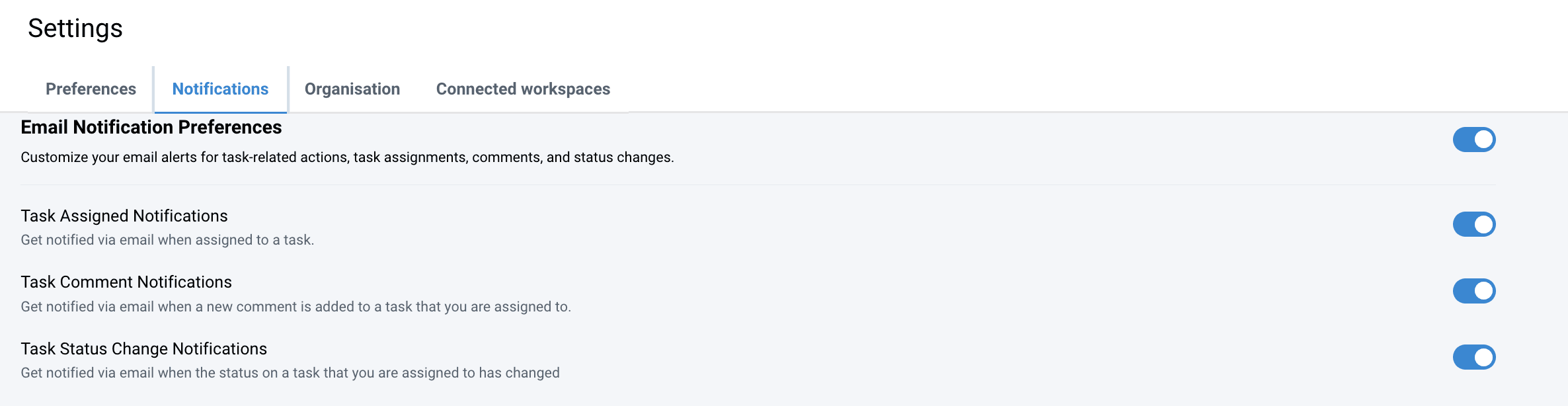
In Notifications, you can activate email notifications related to your tasks. Select Email Notification Preferences to activate all types of the following notifications or select only the needed notifications types:
- Task Assigned Notifications: This option lets you get email notifications that someone assigned a task to you.
- Task Comment Notifications: This option lets you get email notifications of new comments and reactions posted to the tasks assigned to you.
- Task Status Change Notifications: This option lets you get email notifications if the status of the task assigned to you changed.
Organisation tab
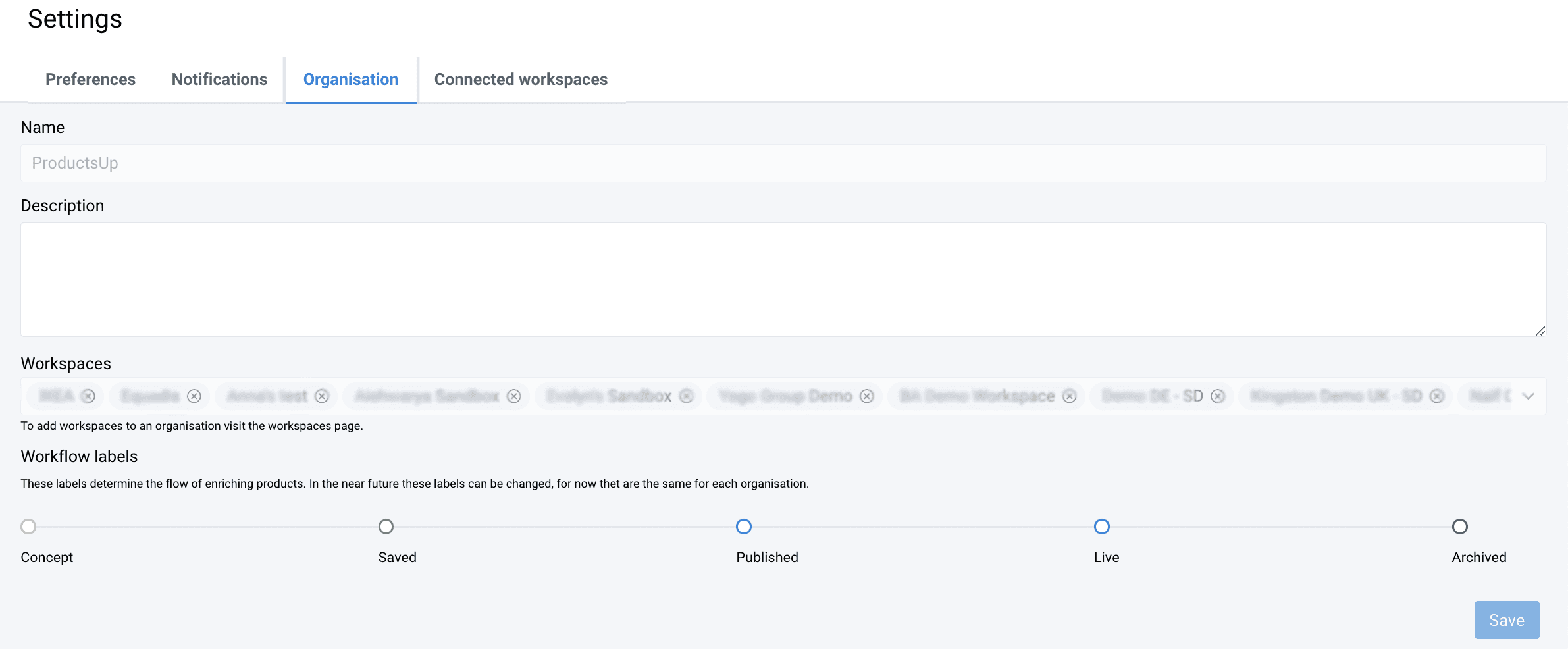
In Organisation, you can manage the following settings:
| Property | Purpose |
|---|---|
| Name | The official organization name (read-only; requires Admin access to change). |
| Description | An optional field to add a summary or details about your organization. |
| Workspaces | Displays all available workspace environments within the organization. |
| Workflow labels | Standardized statuses that define the product enrichment process: • Concept: Initial product draft. • Saved: Data is committed to the database. • Published: Data is visible to clients and shared workspaces. • Live: The product is active and live. • Archived: Product is removed from circulation but data is retained. |
Connected workspaces tab
In Connected workspaces, you can see all the workspaces available to you and represented with their logo, name, General contact, and Financial contact.
Developers
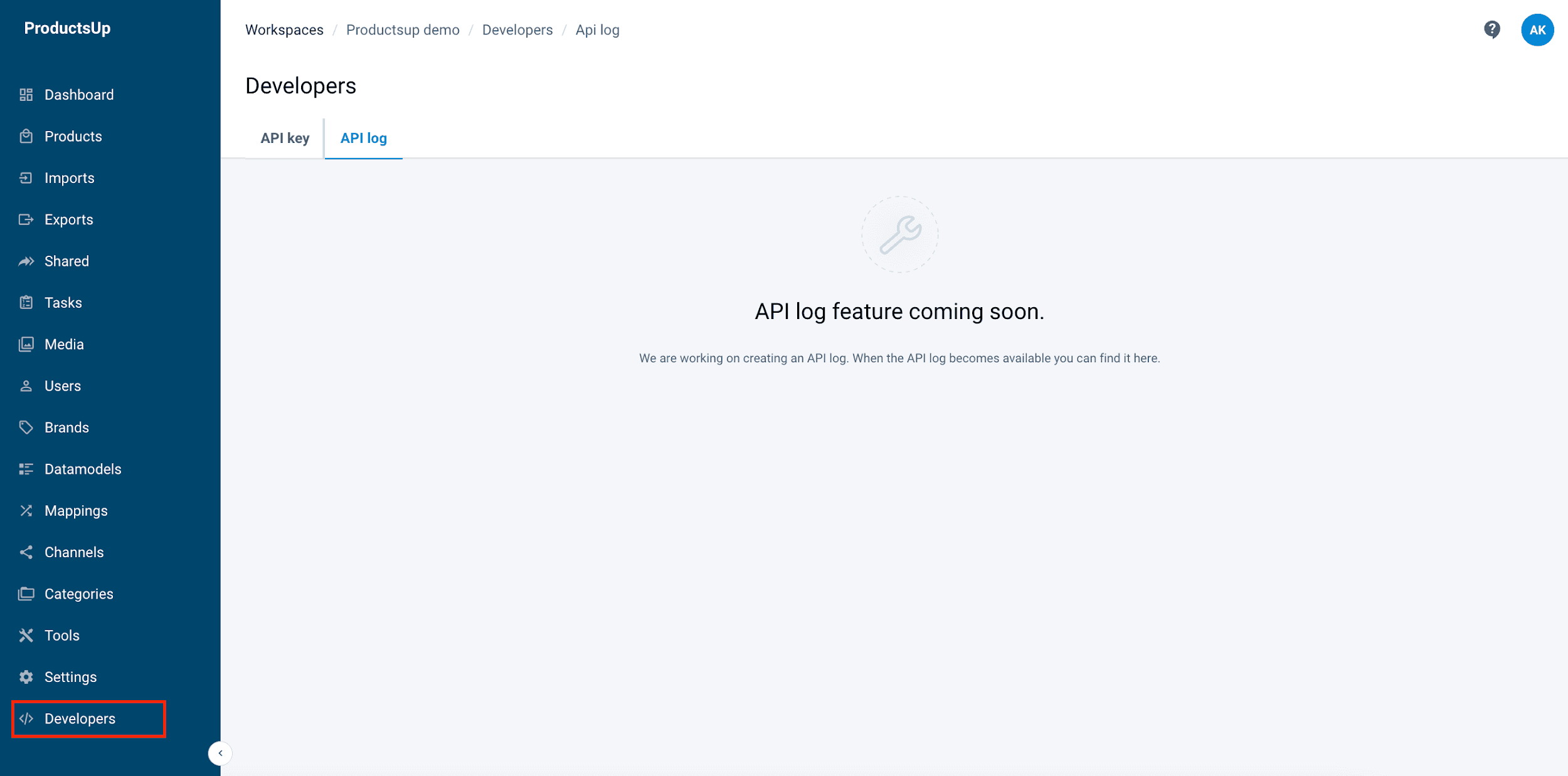
Developers is a page where can request access to the Retail Platform Public API, generate or reset API access token.
How is this guide?