

Import mapping
An overview of the Import mapping
Introduction
The Retail platform facilitates data exchange between your organization and retailers through three core areas:
- Imports & Exports: Define your data sources in Imports and your delivery destinations in Exports.
- Mapping (Import Tab): Align your source attributes with platform data models to ensure incoming data is optimized and correctly structured.
- Mapping (Export Tab): Map workspace attributes to specific retailer requirements and channel formats to ensure compliance and successful delivery.
This guide focuses on the Import mapping only.
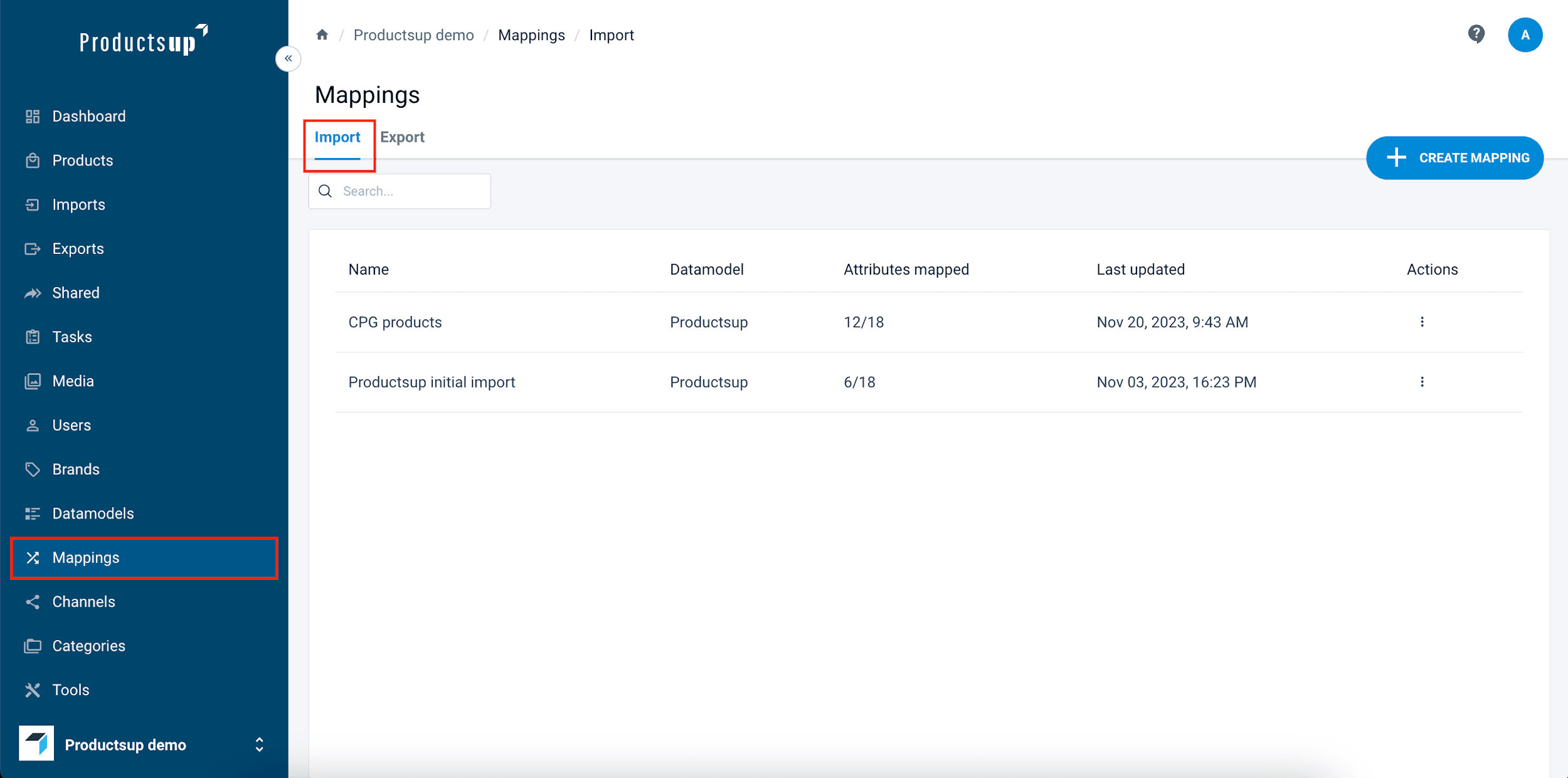
View all Import mappings
To view all Import mappings, select the Import tab. It contains the following information:
- Name shows the name of an import mapping.
- Datamodel shows the data model an import mapping belongs to.
- Attributes mapped shows the number of already matched attributes in a mapping out of all attributes in the relevant data model.
- Last updated shows the date and time of your last change to the import mapping.
- Actions lets you manage your import mapping by selecting Edit, Rename, Duplicate, or Delete.
Create or edit an Import mapping
To create a new import mapping:
- Select Create mapping in the top-right corner of the page.
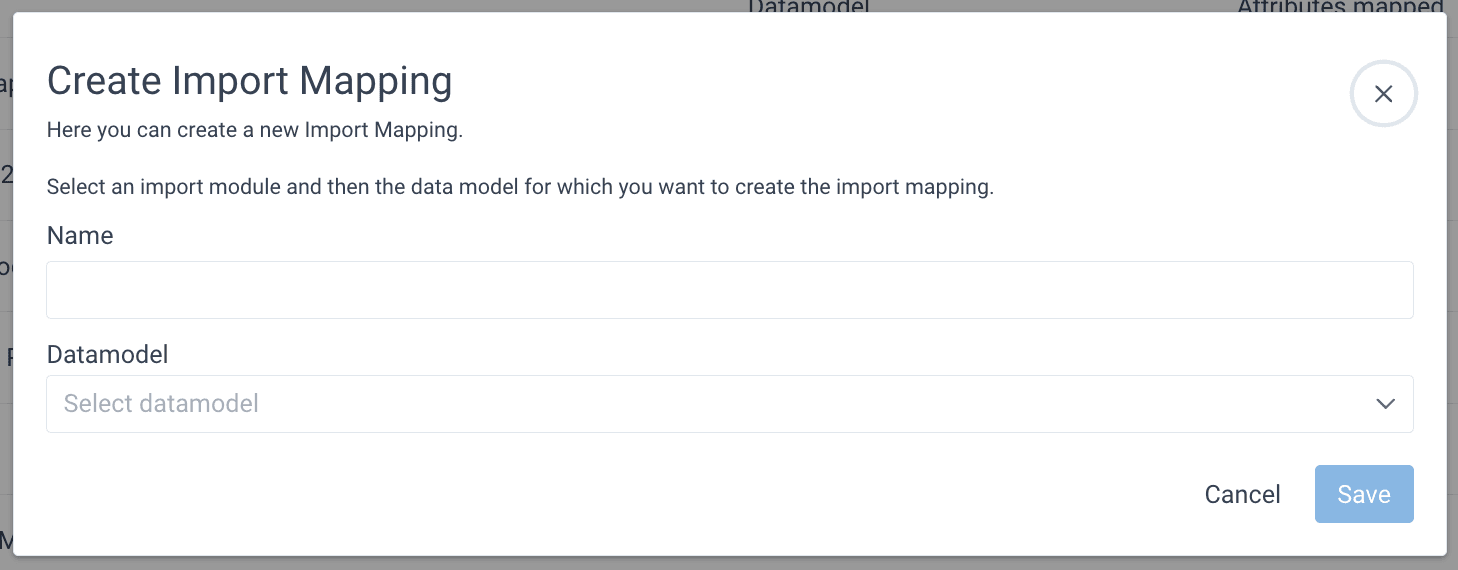
- Give your mapping a name in Name.
- From the Datamodel drop-down menu, select a data model with which you want to map attributes from your imports.
- Select Save.
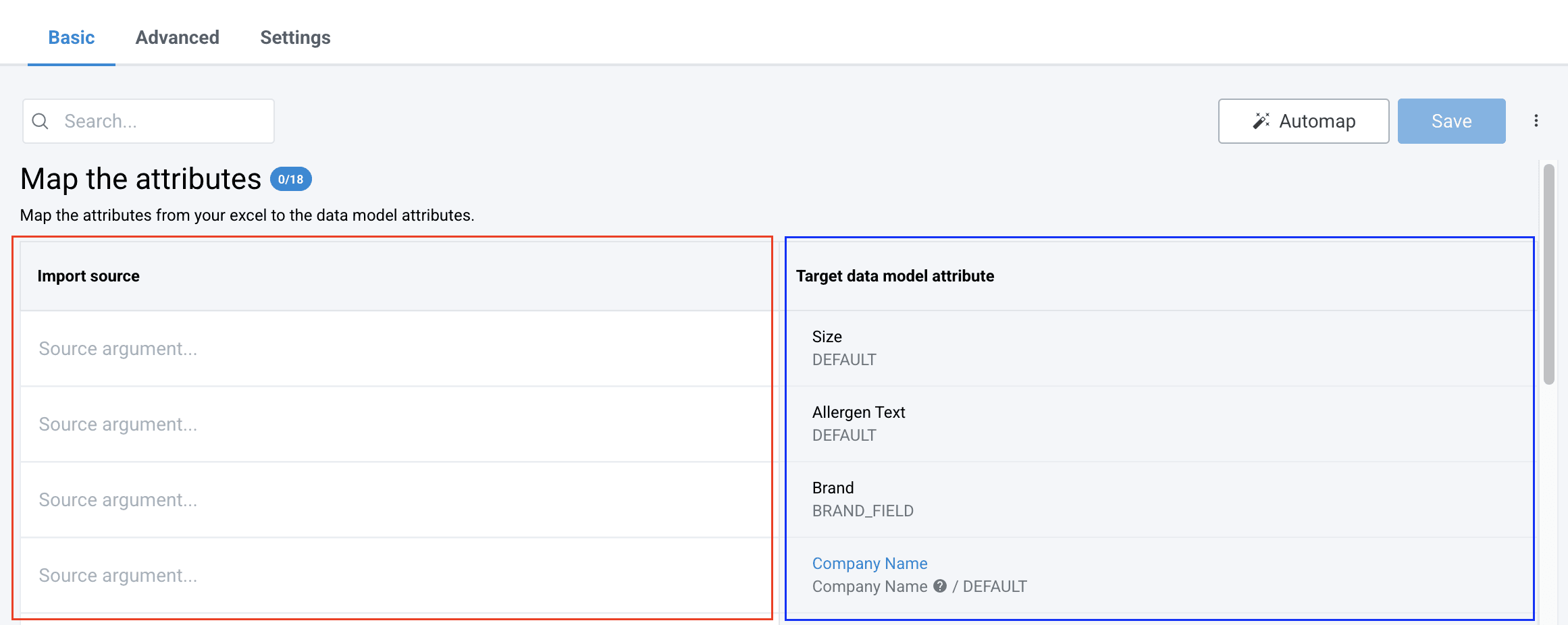
- On the import mapping setup page, map the attribute names from your imports (highlighted in red on the left) to the attribute names of the chosen data model (highlighted in blue on the right). You can map your attributes manually by entering attribute names from your imports in the Import source column. You can also use the automapping feature.
How to use Automapping
- Select Automap.
- Choose the file with your import attributes in Upload.
- In Enter the row number containing the headers, enter the number of the row in your file containing attribute names, or use the up and down arrows to choose the needed number.
- In Apply automapping to, choose how the platform should map attributes from your file to the attributes of the data model:
- Empty attributes only maps the attributes you haven't yet mapped in this import mapping.
- All attributes maps all attributes from the file.
- Select Automap.
If you used the automapping feature and the platform couldn't match all the relevant attributes, enter the remaining attribute names in the Import source column. 7. When finished, select Save.
NOTE: To use the automapping feature, you need a CSV, XLS, or XLSX file containing the attribute names from your imports. If the attribute name in your file exactly matches the name of an attribute from the data model, the platform matches the two automatically and pre-fills the needed attribute name in the Import source column. An exact match means the same spelling and case.*
Edit Import mapping
- Go to Mapping and find the necessary mapping in the Import tab.
- Select the three dots in the Actions column of your mapping and select Edit.
- Make the needed changes and select Save.
Duplicate Import mappings
To copy an import mapping:
- Select the three dots in the Actions column next to your mapping and select Duplicate. The pop-up window Duplicate import mappings opens up.
- Give your new mapping a name in Name.
- Select a workspace where you want to add the copied mapping in Workspace.
- Select a relevant data model in Datamodel.
- Select Duplicate.
Delete Import mappings
To delete an import mapping:
- Select the three dots in the Actions column of your mapping and select Delete.
- The pop-up window asks you to confirm the action. Select Yes.
How is this guide?