

Send multiple product videos to Meta
Send several videos per product, with optional tags, from Productsup to Meta Commerce Manager using the Facebook Dynamic Ads exports.
Meta catalog ads let you attach one or more videos to each product, so that Meta's delivery system can serve the most relevant video to each shopper and placement. This page explains how to set up a Facebook Dynamic Ads export in Productsup and how to format your video data so Meta can read several videos per product.
Why multiple product videos matter on Meta
Brands that add video to their catalog alongside images have reported higher incremental reach and better cost efficiency. Video also unlocks video-first placements such as Instagram Reels and Facebook Reels.
When you supply several tagged videos per product, for example separate exterior and interior shots, Meta's system has more creative variety to choose from. This results in more relevant ads that perform better.
See Add product videos to your catalog in Commerce Manager in the Meta Business Help Center for more information.
What you need to send multiple videos to Meta
Two things need to be in place before multiple product videos appear correctly in Meta ads:
- An export that connects your catalog in Productsup to Meta Commerce Manager
- Video data formatted so Meta can read several videos per product, and their tags where the export supports them
Choose your Facebook Dynamic Ads export
Productsup offers two exports for sending your product catalog to Meta Commerce Manager. Both feed the same Meta ecosystem: Facebook, Instagram, Messenger, and Audience Network. The right choice depends on the size of your catalog and how often it changes.
| Facebook Dynamic Ads | Facebook Dynamic Ads (Delta Upload) | |
|---|---|---|
| What it sends | Your entire product catalog on every run | Only new, updated, and deleted products since the last run |
| Best for | Smaller catalogs or less frequent updates | Large catalogs with millions of products, or near real-time updates |
| Delivery method | File-based (Productsup Server, SFTP, FTP, FTPS) or API-based (Facebook Marketing API: Data Feed) | API-based only (Facebook Marketing API: Data Feed Delta) |
| Video format | JSON-encoded list of video objects, with optional tags | Video URLs separated by a pipe or a space, without tags |
| Troubleshooting | The data source in Commerce Manager and the Productsup Error Log | Export Feedback in Productsup |
Set up the Facebook Dynamic Ads export for your full catalog
Use this export to send your entire product catalog to Commerce Manager on every run. You can deliver the catalog as a file or directly through the Facebook Marketing API.
Before you start, make sure you have a Facebook business account with a product catalog. For API delivery, you also need a Facebook authentication connected in Productsup and the ID of the target catalog.
In your site, go to Exports and select Add export.
Search for Facebook Dynamic Ads and add the export.
Add a destination. You can choose a standard file destination, such as Productsup Server or SFTP/FTP/FTPS, or the API-based Facebook Marketing API: Data Feed. The API destination uploads your catalog automatically and handles compression and file splitting for large catalogs.
In Dataflow, map your product attributes to the export, including the mandatory attributes listed in Mandatory attributes for Facebook Dynamic Ads exports.
See Add Facebook Dynamic Ads export for the full setup.
Set up the Facebook Dynamic Ads (Delta Upload) export
Use this export for large catalogs or near real-time updates. Instead of resending everything, the export sends only new, updated, and deleted products through the Facebook Marketing API, which reduces processing time in both Productsup and Meta.
Before you start, make sure you have a Facebook business account with a product catalog, the catalog ID, and a Facebook authentication connected in Productsup.
In your site, go to Exports and select Add export.
Search for Facebook Dynamic Ads (Delta Upload) and add the export.
Add the destination Facebook Marketing API: Data Feed Delta.
Enter your catalog ID and select your Facebook authentication.
Keep Feedback import switched on, so that Productsup can show any errors that Meta returns.
In Dataflow, map your product attributes to the export, including the mandatory attributes listed in Mandatory attributes for Facebook Dynamic Ads exports.
See Add Facebook Dynamic Ads (Delta Upload) export for the full setup.
Mandatory attributes for Facebook Dynamic Ads exports
Both exports require the following nine attributes.
| Attribute | Description |
|---|---|
id | Unique product identifier |
title | Product name shown in the ad |
description | Short product description |
availability | In stock or out of stock |
condition | New, used, or refurbished |
price | Price including currency, for example 19.99 USD |
link | URL of the product page |
image_link | URL of the main product image |
brand | Brand or manufacturer name |
Format multiple product videos for each export
Once the export is connected, format your video data so Meta can recognize several videos per product. The required format differs by export.
Send multiple videos with tags in the Facebook Dynamic Ads export
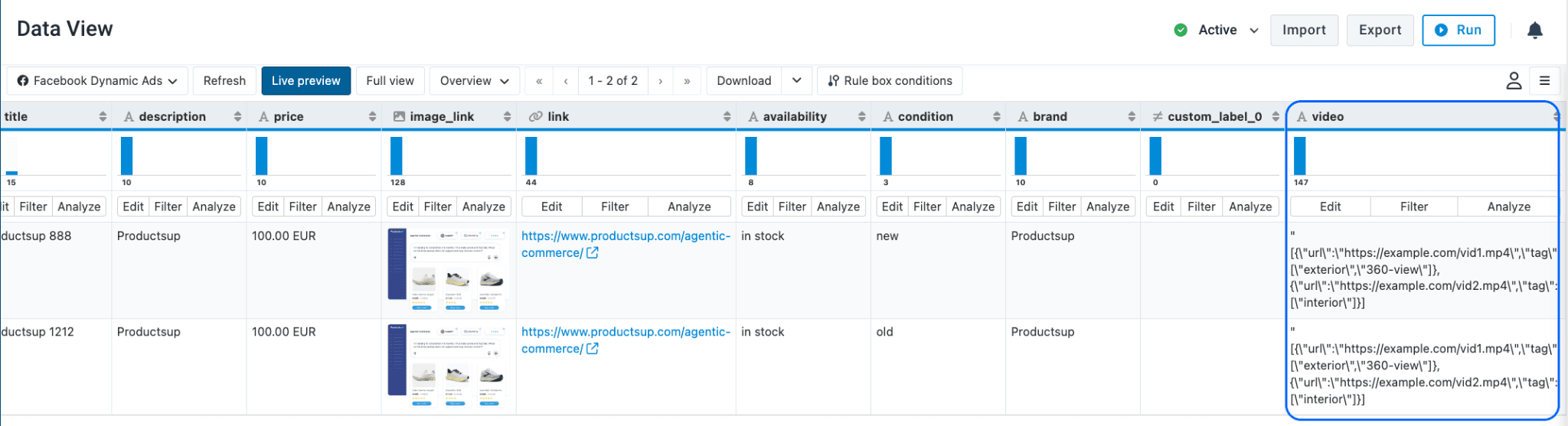
For the full catalog export, provide one video attribute per product that contains a JSON-encoded string. The string represents a list of video objects. Each video object has a url and an optional list of tag values, such as exterior, 360-view, or interior. If a video has no tags, leave out the tag property for that video.
"[{\"url\":\"https://example.com/vid1.mp4\",\"tag\":[\"exterior\",\"360-view\"]},{\"url\":\"https://example.com/vid2.mp4\",\"tag\":[\"interior\"]}]"Square brackets hold the list of videos, and each block in curly braces is one video. Each video needs a url and can have a tag list. A video with only a URL, such as {"url":"https://example.com/vid3.mp4"}, is valid.
Tip
If your source data provides video URLs and tags as separate values, use rule boxes in Dataflow to combine them into the JSON format. See Find the needed rule box category for the available rule boxes.
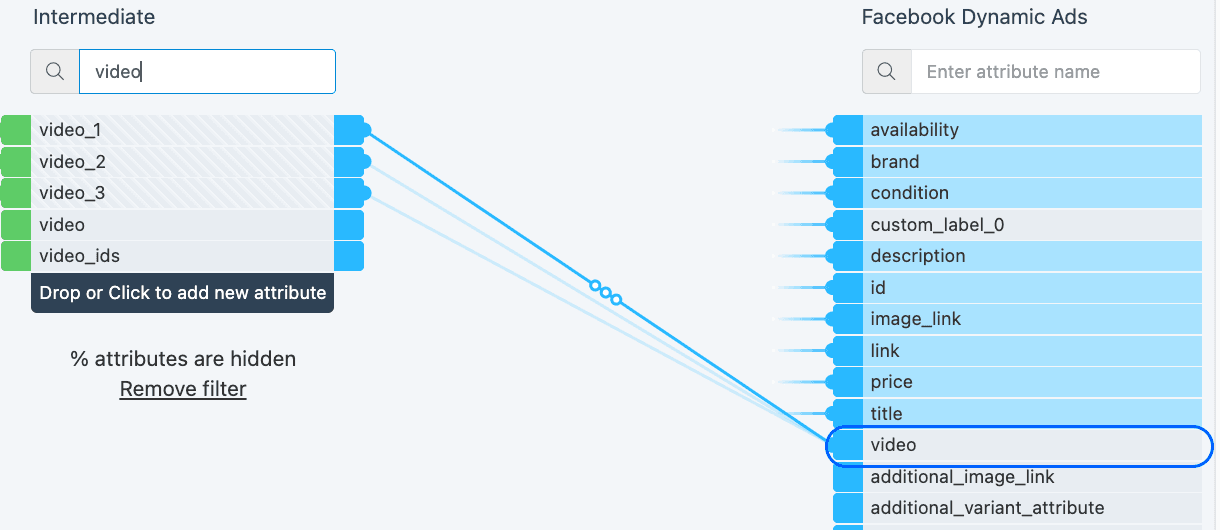
In Dataflow, map your video attributes, for example video_1, video_2, and video_3, to the video attribute of the Facebook Dynamic Ads export.
In Data View, check that the video attribute contains the JSON-encoded string for each product.
Send multiple videos in the Facebook Dynamic Ads (Delta Upload) export
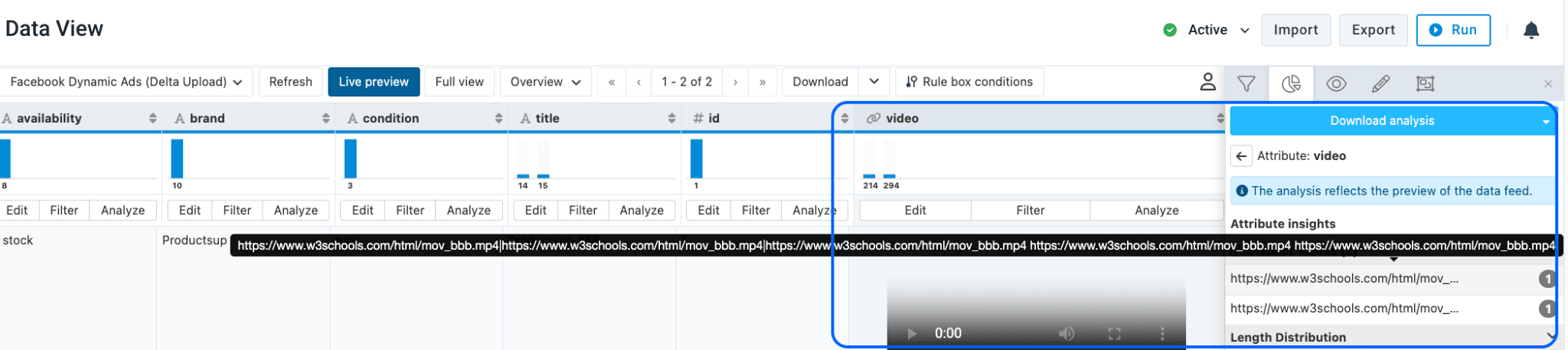
The Delta Upload export does not use the JSON format and does not support video tags. Instead, provide a video attribute that contains several video URLs separated by a pipe (|) or a space.
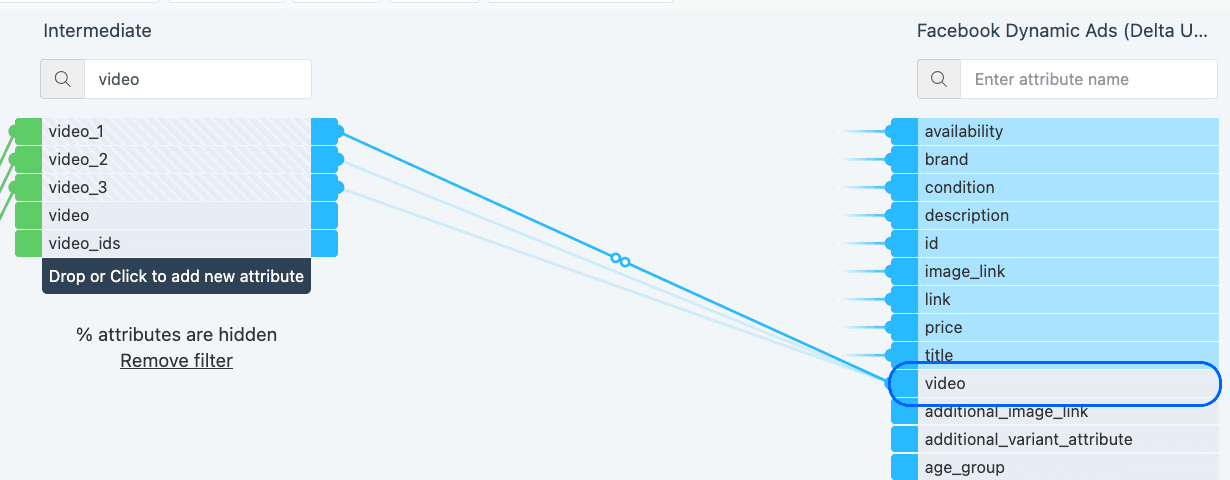
https://example.com/vid1.mp4|https://example.com/vid2.mp4In Dataflow, map your video attributes to the video attribute of the Facebook Dynamic Ads (Delta Upload) export.
In Data View, check that the video attribute contains the pipe-separated video URLs for each product.
Video formats by export
| Export | Format of the video attribute | Supports tags |
|---|---|---|
| Facebook Dynamic Ads | [{"url":"...","tag":["..."]}] | Yes, through the tag list |
| Facebook Dynamic Ads (Delta Upload) | URLs separated by | or a space | No |
How is this guide?