Set up a shared data source and reuse it across sites
Learn to use the Shared Data Sources feature to set up a shared data source once and reuse it across multiple sites in your Productsup organization.
Note
Shared Data Sources is currently in beta testing. If you experience any issues, contact support@productsup.com.
The Shared Data Sources feature lets you set up a shared data source at the organization level and then add it as an already configured data source to numerous sites if they need to import data from the same file or system. It saves time by letting you avoid repetitive configuration efforts and reduces the chance of data source setup errors.
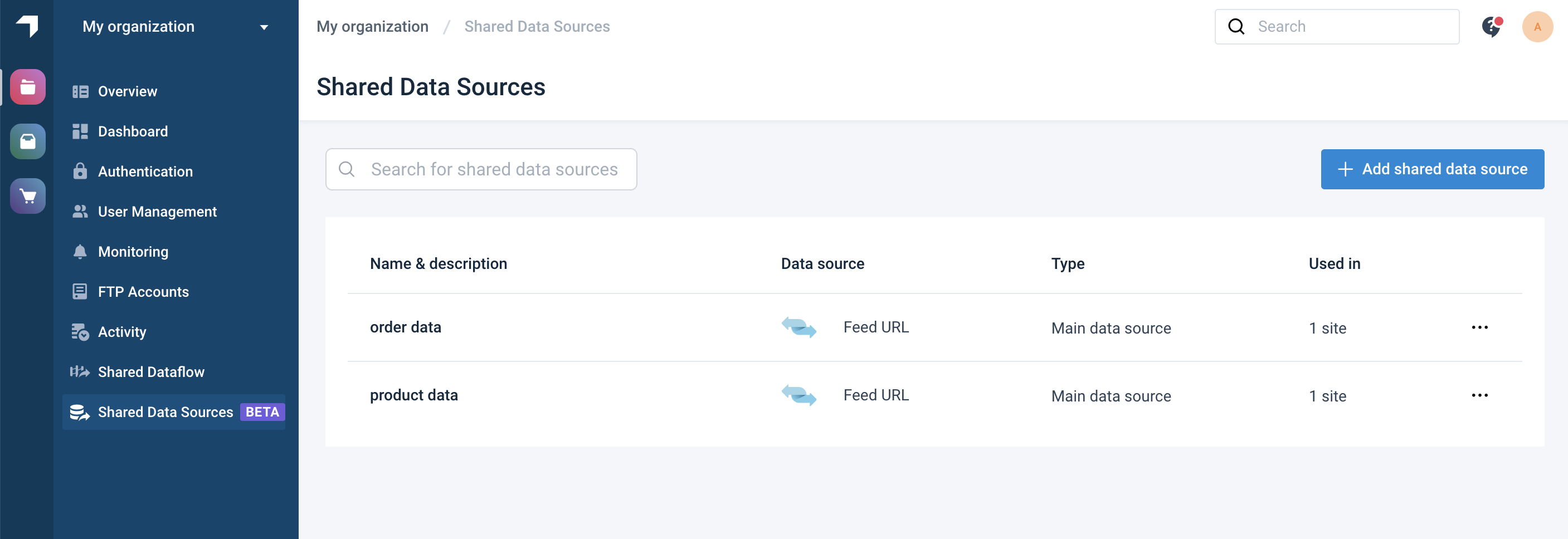
Currently, Shared Data Sources supports most data sources normally available at the site level. But the following ones aren't yet available in Shared Data Sources:
Google Sheets
Local File Import (Upload)
Website Crawler
We are working to add these data sources to the Shared Data Sources feature.
Here is a quick showdown of how the feature works:
Prerequisites
Shared Data Sources is available only to admin users. To create a shared data source at the organization level, you must have an admin user account. However, you only need a regular Read-Write user account to add an already configured shared data source to any site you have access to.
Create a shared data source at the organization level
Note
Only admins can add shared data sources.
Go to Shared Data Sources at the organization level, and select Add shared data source.
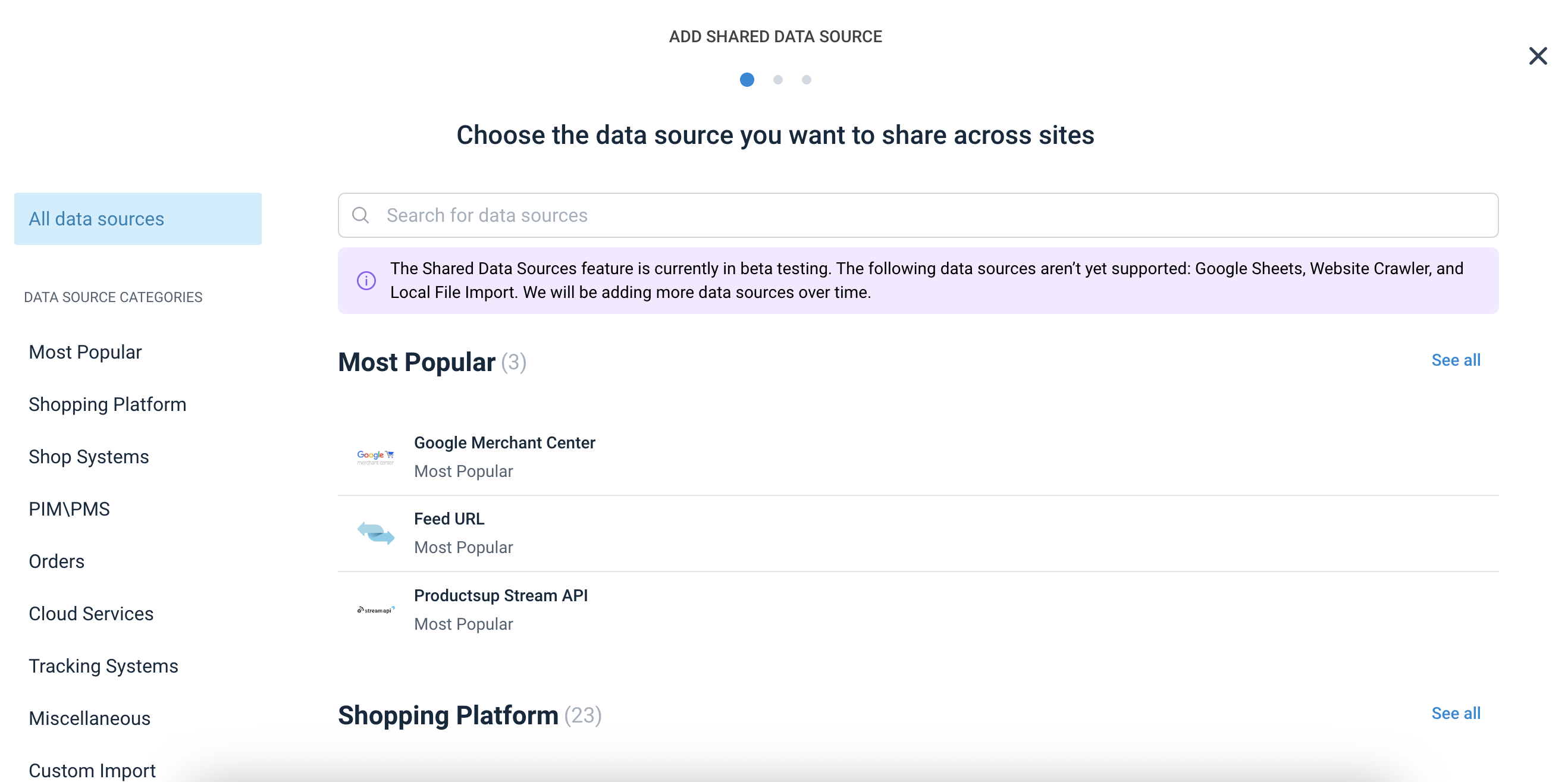
Search for the needed data source, hover over it, and select Choose.

Give it a name and a description as desired, and then select Continue.
Set up the shared data source as needed. The specific setup steps depend on the data source you choose.
Tip
Setting up shared data sources at the organization level requires the same information and steps as setting up regular data sources at the site level. To find guidelines for setting up your specific shared data source, you can use documents for regular data sources. Open the search in the top-right corner of this Help Center page and enter the name of the needed data source, such as Feed URL, to find the needed document.
Once you reach the last step of the setup, select Add data source.
Edit a shared data source at the organization level
If you change the settings of a shared data source, it affects all sites that use it.
Note
Only admins can edit shared data sources.
Go to Shared Data Sources at the organization level, select three dots
 next to the shared data source you want to change, and choose Edit.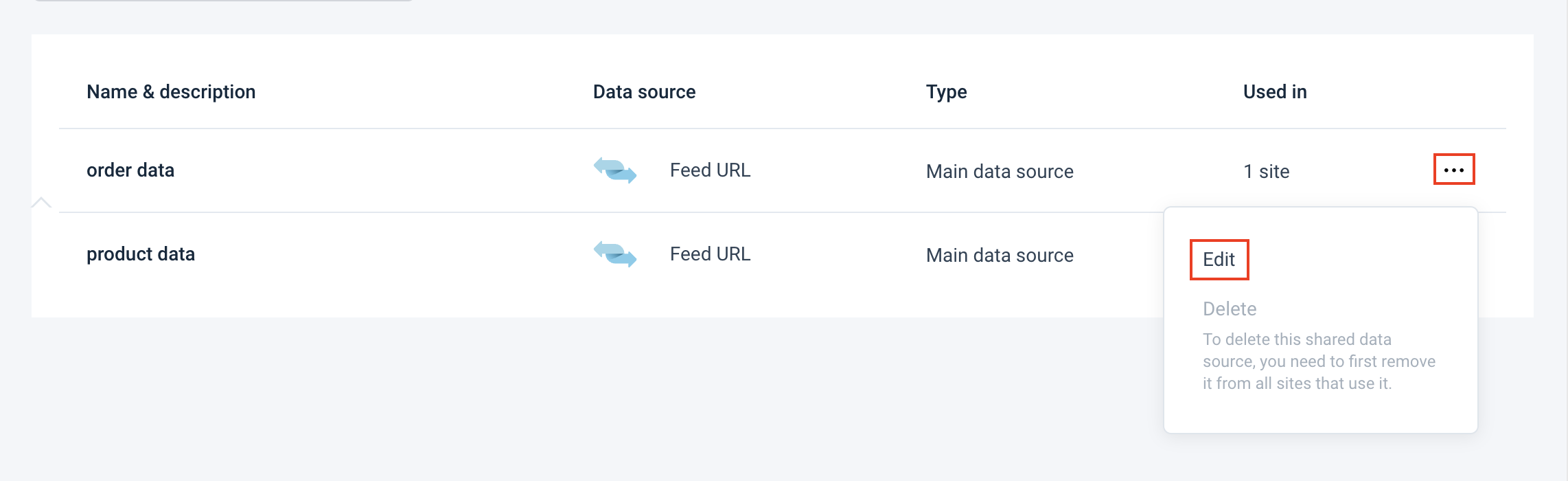
Configure the setup as needed:
To change the setup of the shared data source itself, use the tab General Settings. If applicable, you can also edit the setup in the tab Advanced Settings.
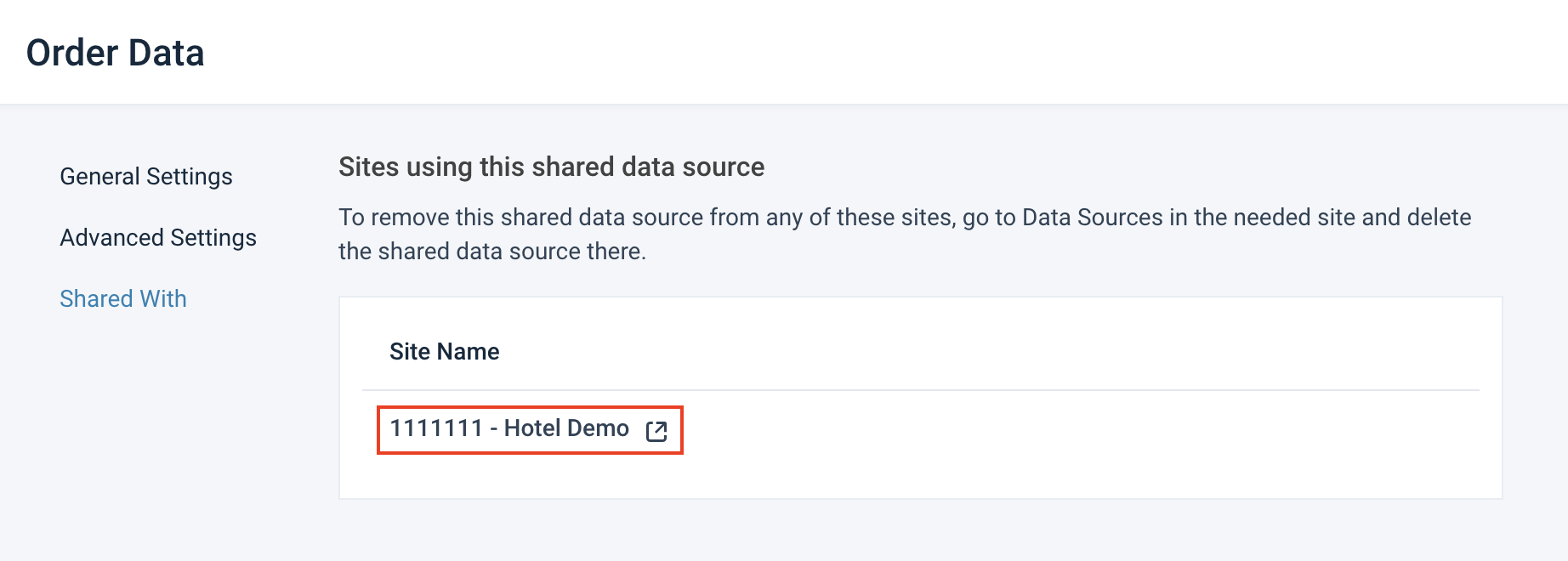
To see the sites that use this shared data source, go to the tab Shared With. You can select the name of the site to open the setup of this shared data source in Data Sources in this site.
Once you are ready to save the new setup, select Save at the bottom of the tab. If you haven't changed any settings, you can leave the page without saving.
Delete a shared data source at the organization level
Note
Only admins can delete shared data sources.
If a shared data source isn't used in any sites, take these steps to delete it:
Go to Shared Data Sources at the organization level, select three dots
next to the shared data source you want to delete, and choose Delete.Select Delete once again to confirm the action.
You have successfully deleted the shared data source. The platform shows a short message at the bottom of the page to confirm it.
If a shared data source is used in at least one site, take these steps to delete it:
Go to Shared Data Sources at the organization level, select three dots
next to the shared data source you want to delete, and choose Edit.Go to the tab Shared With to see which sites use this shared data source.
Select the name of a site to open the setup of this shared data source in Data Sources in this site. Remove the shared data source in the site:
Go to the Advanced Settings tab.
Select Delete this Import, and choose Delete.
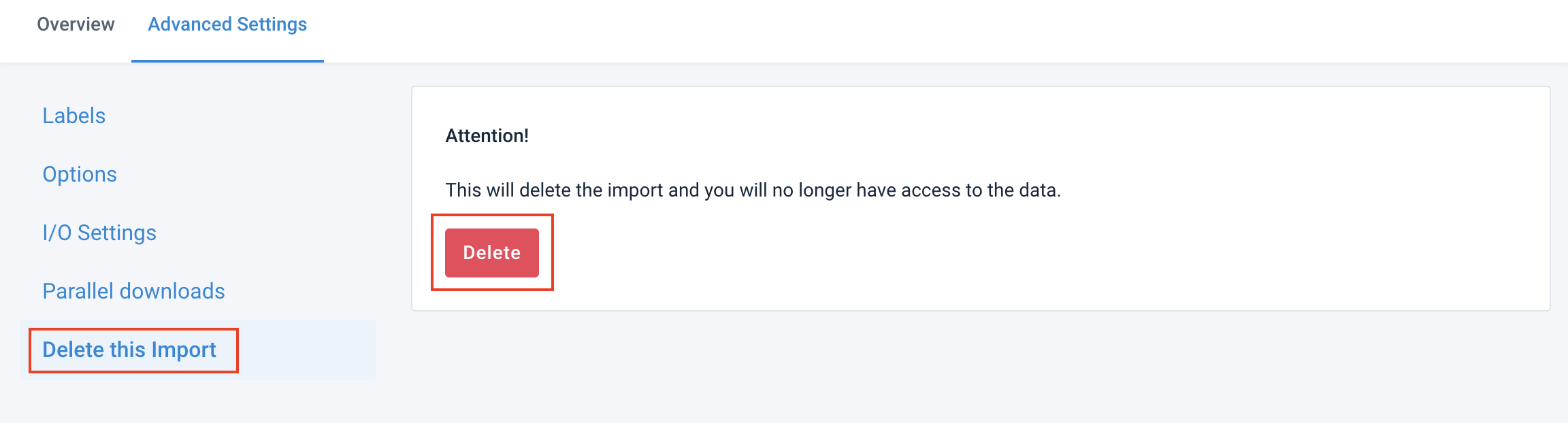
Select Delete once again to confirm the action.
Note
Repeat this step for each site that uses the shared data source.
Once there are no sites that use the shared data source, go to Shared Data Sources at the organization level, select three dots
next to the shared data source you want to delete, and choose Delete.Select Delete once again to confirm the action.
You have successfully deleted the shared data source. The platform shows a short message at the bottom of the page to confirm it.
Add a shared data source in a site
Go to Data Sources from a site's main menu, select Add, and choose Add shared data source.
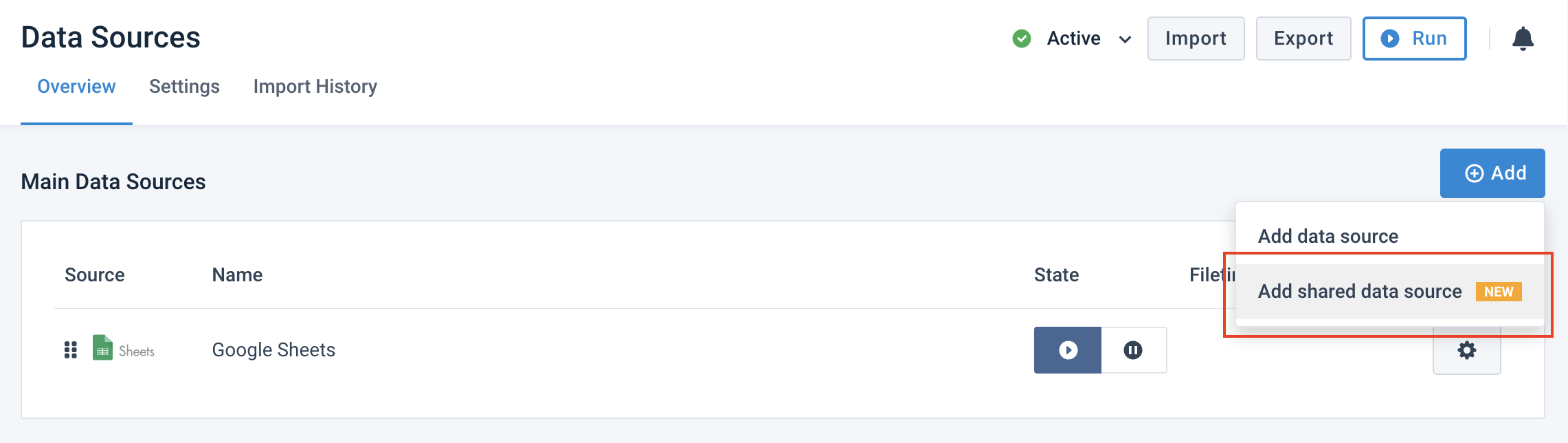
Hover over the needed shared data source, and select Add.
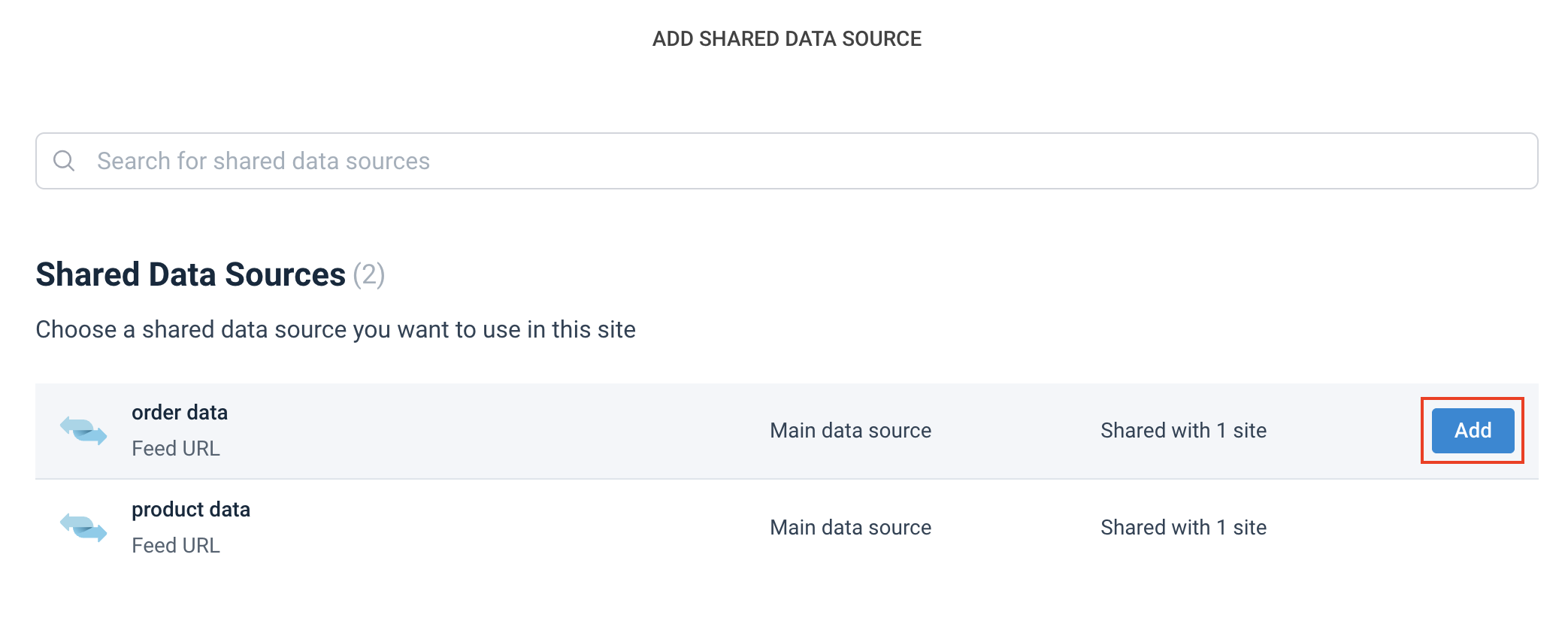
You have successfully added a shared data source to a site.
Note
You can't change most settings for a shared data source at the site level. To adapt a shared data source to the needs of a specific site, you can use the Advanced Settings tab and the following settings available in it:
Labels
Options
Parallel downloads
Delete this Import
To change all other settings of a shared data source, you must go to Shared Data Sources at the organization level. See Edit a shared data source at the organization level.